Untangle Firewall: An Overview

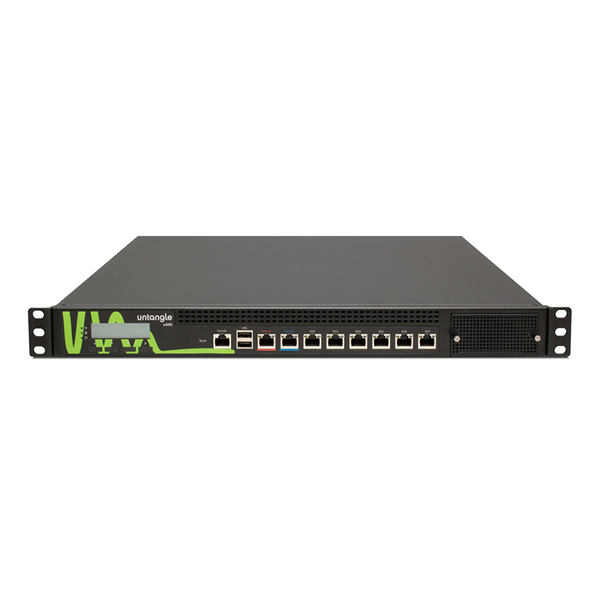
Untangle firewall is a network security platform designed to help organisations control internet access, protect devices and manage traffic passing through their networks. It is best known for its modular approach: administrators can combine firewalling with additional security and monitoring tools to suit their requirements.

The product was historically known as Untangle NG Firewall. Following Untangle’s acquisition by Arista Networks, it has also been referred to as Arista NG Firewall. Product names, features and licensing can change, so check the provider’s current documentation before choosing or deploying it.

What Does Untangle Firewall Do?

At its core, a firewall monitors network traffic and applies rules to decide what should be allowed or blocked. Untangle extends this role with tools that can help administrators inspect traffic, manage users’ access to online services and respond to potential threats.

Depending on the edition and configuration, available capabilities may include:

  • Firewall rules: Control traffic by factors such as source, destination, service or network interface.
  • Intrusion prevention: Inspect traffic for patterns associated with known attacks.
  • Web filtering: Restrict access to websites by category or policy.
  • Application control: Identify or manage the use of selected applications and online services.
  • VPN access: Connect remote users or sites to a protected network, subject to the available configuration.
  • Reporting and monitoring: Review traffic and security events to support troubleshooting and policy decisions.

Not every capability is necessarily included in every version or subscription. Administrators should confirm which features are available and how they are licensed.

How Its Modular Design Works

Untangle’s interface has traditionally presented many security functions as separate applications or modules. This can make it easier to enable only the tools a network needs, rather than managing a single, fixed set of features.

That flexibility also calls for careful planning. Enabling several inspection and filtering tools may affect performance, particularly on a busy network or on hardware with limited resources. A sensible deployment starts with the organisation’s security requirements, expected traffic levels and available hardware.

Deployment Options

Untangle firewall has been available for deployment on dedicated appliances and compatible hardware, as well as in virtualised environments. The right option depends on the size and layout of the network, the organisation’s IT skills and its approach to maintenance.

Before installation, plan where the firewall will sit in the network, how internal and external connections will be configured, and how administrators will reach the management interface. It is also important to have a recovery plan in case a change disrupts access to the internet or business systems.

Potential Benefits

  • Centralised administration: Firewall and related security settings can be managed through a shared interface.
  • Configurable protection: Modular tools can help tailor policies to different users, devices or network needs.
  • Traffic visibility: Reports can help teams understand network use and investigate unusual activity.
  • Support for smaller IT teams: A combined platform may reduce the need to administer several separate products, depending on the organisation’s setup.

Points to Consider

A firewall is only one part of a broader security strategy. It cannot replace secure passwords, multi-factor authentication, timely software updates, endpoint protection, reliable backups or staff awareness. Nor does installing a firewall guarantee that a network is secure.

Organisations should also assess performance, update frequency, support arrangements, licensing costs and integration with existing systems. Security features need to be configured and maintained; default settings may not meet an organisation’s requirements. Regularly reviewing firewall rules and investigating alerts can help keep the deployment effective.

Is Untangle Firewall Right for Your Organisation?

Untangle firewall may be worth considering for organisations seeking a centrally managed platform that combines firewall controls with additional network security functions. Whether it is the right choice depends on the required features, the size of the network, available hardware, budget and the level of technical support needed.

Before committing, compare the current product offering with other firewall platforms, test it in a controlled environment where possible, and confirm that it meets your security and compliance requirements. A well-planned deployment, supported by ongoing monitoring and maintenance, is essential to getting value from any firewall solution.


Untangle Firewall FAQs: Features, Pricing, Setup and Suitability

  1. What is Untangle Firewall, and how does it work?
  2. What features does Untangle Firewall include?
  3. Is Untangle Firewall free to use?
  4. How do I install and configure Untangle Firewall?
  5. Is Untangle Firewall suitable for small businesses and home networks?

What is Untangle Firewall, and how does it work?

Untangle Firewall, now associated with Arista NG Firewall, is a network security platform that helps organisations control and monitor traffic between their network and the internet. It applies rules to allow or block connections and can provide additional tools—depending on the version and configuration—for tasks such as web filtering, intrusion prevention, application control and VPN access. Administrators manage these settings through a central interface, tailoring them to the organisation’s users, devices and security needs.

What features does Untangle Firewall include?

Untangle Firewall, also known as Arista NG Firewall, combines core firewall controls with a range of network security tools. Depending on the version and subscription, features may include intrusion prevention, web filtering, application control, VPN access, traffic monitoring and reporting. These tools help administrators manage network access, inspect traffic and investigate potential security events. Available features can vary, so check the current product documentation and licensing details before choosing a solution.

Is Untangle Firewall free to use?

Untangle Firewall may offer free or trial options, but the features available can depend on the product version, subscription and deployment type. Some advanced security tools or support services may require a paid licence. As plans and product names can change, check the current Arista NG Firewall pricing and licensing information before deploying it to confirm what is included.

How do I install and configure Untangle Firewall?

To install and configure Untangle Firewall, first check the current system requirements and download the appropriate installation image or prepare a supported appliance. Back up important settings, then install the software on the chosen device and connect its network interfaces to the internet and internal network as directed by the setup guide. Use the initial configuration wizard to set administrator credentials, network interfaces, IP settings and any required internet connection details. Once the firewall is online, configure and test rules, user access, VPN and any security or filtering features you need; then apply updates and review logs to confirm everything is working as intended. Exact steps can vary by product version and deployment, so follow the current official documentation and keep a recovery plan in case a configuration change interrupts access.

Is Untangle Firewall suitable for small businesses and home networks?

Yes, Untangle Firewall can be suitable for small businesses and home networks that need more control over traffic, web filtering, VPN access or security monitoring than a standard router provides. Its suitability depends on the features required, the hardware available and any licensing or support costs; setup and ongoing maintenance may also require some technical knowledge. For a simpler home network, a modern router’s built-in security features may be enough, while small businesses should assess their security and compliance needs before choosing a firewall.
SDN Security: Protecting the Software-Defined Network

Software-defined networking (SDN) changes how networks are managed. Rather than configuring every network device individually, SDN uses software to control and coordinate network behaviour. This can make networks more flexible and easier to manage, but it also introduces security considerations that organisations need to address.

Effective SDN security protects the network’s controllers, devices, applications and communications. It also helps ensure that network policies are applied consistently, even as infrastructure changes.

What is software-defined networking?

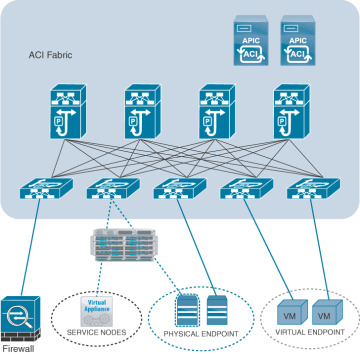
In a traditional network, control functions are distributed across routers and switches. SDN separates the network’s control plane, which decides how traffic should be handled, from its data plane, which forwards that traffic. A centralised or logically centralised SDN controller communicates with network devices and directs their behaviour.

Applications can interact with the controller through northbound interfaces, while the controller communicates with network devices through southbound interfaces. The exact architecture and protocols vary between SDN platforms, but the broad principle is the same: network behaviour is managed through software and policies.

Why does SDN security matter?

Centralised management can improve visibility and make it quicker to apply security policies across a network. For example, administrators may be able to isolate a compromised device or restrict access to a sensitive service without changing each switch manually.

However, the controller has significant influence over the network. If it is compromised, misconfigured or unavailable, an attacker or technical fault could affect many devices at once. SDN also relies on software, APIs and communication channels that may create new points of exposure. Security needs to be built into the architecture, rather than added only after deployment.

Common SDN security risks

  • Controller compromise: An attacker who gains access to the controller may be able to change network policies, redirect traffic or disrupt services.
  • Unauthorised access: Weak authentication, excessive privileges or poorly managed administrator accounts can expose controllers and management interfaces.
  • Insecure APIs: Vulnerabilities in northbound or southbound interfaces can allow unauthorised commands, data exposure or misuse of network functions.
  • Insecure communications: Traffic between controllers, applications and network devices could be intercepted or altered if it is not appropriately protected.
  • Misconfiguration: Incorrect policies can unintentionally allow traffic between systems that should be isolated, or block legitimate services.
  • Denial-of-service attacks: A flood of requests or network events may overwhelm a controller or the services it depends on.
  • Compromised applications or devices: Vulnerabilities in connected applications, switches, routers or virtual network functions can provide a route into the wider environment.
  • Limited visibility: Rapidly changing, virtualised networks can make it harder to identify unusual activity unless monitoring covers both the control and data planes.

Best practices for securing an SDN environment

Protect the controller

Treat SDN controllers as critical infrastructure. Place them in a restricted management environment, limit administrative access and apply security updates promptly. Use strong authentication, including multi-factor authentication where available, and assign permissions according to each user’s responsibilities. Avoid exposing management interfaces directly to untrusted networks.

Secure APIs and communications

Use authenticated and encrypted communication between controllers, applications and network devices wherever supported. Validate API inputs, manage credentials securely and disable interfaces or services that are not required. Review API permissions regularly, particularly when applications or integrations change.

Apply least privilege and separation of duties

Users, applications and devices should receive only the access they need. Separate administrative duties where practical, and use distinct accounts for routine tasks and privileged operations. This can limit the impact of a compromised account or an accidental change.

Segment the network

Use network segmentation to separate sensitive systems, management traffic and user workloads. Define clear rules for communication between segments and review them regularly. SDN can help automate segmentation, but the policies still need careful design and testing.

Monitor network activity

Collect and review logs from controllers, network devices and relevant applications. Monitor for unexpected policy changes, unusual administrative activity, abnormal traffic patterns and repeated authentication failures. Integrating SDN logs with security monitoring tools can help teams investigate events across the wider environment.

Test changes before deployment

Network policies can have far-reaching effects. Test changes in a controlled environment where possible, use staged roll-outs and keep a record of approved changes. Establish a clear process for reviewing, authorising and, if necessary, reversing policy updates.

Plan for resilience and recovery

Consider how the network will behave if a controller, link or supporting service becomes unavailable. Depending on the platform, resilience may involve controller redundancy, backups, recovery procedures and tested failover arrangements. Document how to restore service and practise the relevant procedures.

Assess the supply chain

SDN environments may depend on software from multiple suppliers, including controller platforms, applications and virtual network functions. Assess supplier security practices, keep an inventory of components and track relevant updates and vulnerabilities. Use trusted sources for software and verify that components are supported.

Building an SDN security strategy

There is no single configuration that suits every SDN deployment. A sound security strategy starts with an understanding of the network’s architecture, critical assets, data flows and operational requirements. From there, organisations can identify likely threats, set security objectives and decide how controls will be implemented and tested.

Security should be considered throughout the SDN lifecycle: during design, deployment, day-to-day operation and decommissioning. Regular reviews help ensure that policies remain appropriate as applications, users and network services change.

Conclusion

SDN can make networks more adaptable and improve the consistency of network management. Its centralised control and reliance on software also mean that controllers, APIs, communications and policies need strong protection. By applying least privilege, securing interfaces, monitoring activity, testing changes and planning for recovery, organisations can reduce risk and make SDN a more resilient part of their security architecture.


8 Essential Tips for Securing Software-Defined Networks (SDN)

  1. Secure the controller with strong authentication.
  2. Encrypt control-plane communications.
  3. Segment management and data networks.
  4. Apply least-privilege access controls.
  5. Keep SDN software and firmware patched.
  6. Monitor flows for unusual activity.
  7. Validate rules before deploying changes.
  8. Back up controller configurations regularly.

Secure the controller with strong authentication.

Secure the SDN controller with strong authentication to help prevent unauthorised access to a critical part of your network. Use unique accounts, strong passwords and multi-factor authentication where available, and avoid shared administrator credentials. Give each user only the permissions needed for their role, review access regularly and remove accounts promptly when they are no longer required. These measures can reduce the risk of an attacker taking control of network policies or disrupting services.

Encrypt control-plane communications.

Encrypt control-plane communications to protect instructions and status data exchanged between SDN controllers, network devices and applications. Encryption helps prevent attackers from intercepting or tampering with this traffic, which could otherwise expose sensitive information or lead to unauthorised network changes. Use secure, supported protocols, validate the identity of communicating endpoints and manage certificates and keys carefully, including renewing them before they expire.

Segment management and data networks.

Keep management traffic separate from the data network to reduce the risk of an attacker reaching SDN controllers and administrative interfaces through compromised user devices or services. Use dedicated network segments, restrict access to authorised systems and administrators, and apply firewall rules that allow only the connections required for management. Regularly review segmentation policies and monitor traffic between segments to spot unauthorised access or unexpected changes.

Apply least-privilege access controls.

Apply least-privilege access controls across your SDN environment by giving users, applications and devices only the permissions they need to perform their roles. Restrict access to controllers and management interfaces, use strong authentication and review privileges regularly, especially when responsibilities change. This limits the damage a compromised account or misconfigured application can cause and helps prevent unauthorised changes to network policies.

Keep SDN software and firmware patched.

Keep SDN software and firmware patched to protect controllers, switches, routers and related components from known vulnerabilities. Apply security updates promptly, following a controlled process that includes checking vendor guidance, testing changes where possible and keeping a recovery plan in place. Regular patching reduces the risk of attackers exploiting outdated systems to disrupt network services or gain unauthorised access.

Monitor flows for unusual activity.

Monitor network flows for unusual activity to help spot potential threats early. Establish a baseline of normal traffic between users, devices and services, then look for deviations such as unexpected connections, unusual data volumes, unfamiliar destinations or sudden changes in communication patterns. In an SDN environment, flow monitoring can provide valuable visibility across dynamically changing networks, helping security teams investigate suspicious behaviour and apply containment policies promptly. Tune alerts to reduce false positives, and review them regularly as network activity evolves.

Validate rules before deploying changes.

Validate SDN rules before deploying changes to ensure they work as intended and do not introduce security gaps or disrupt legitimate traffic. Test policies in a controlled environment where possible, check how they interact with existing rules, and obtain the appropriate approval before rolling them out. A staged deployment and a clear rollback plan can help limit the impact if an issue arises.

Back up controller configurations regularly.

Back up SDN controller configurations regularly so they can be restored if a controller fails, is compromised or a configuration change causes disruption. Store backups securely, restrict access and keep copies separate from the controller itself. Test the restoration process periodically, as a backup is only useful if it can be recovered successfully.

Untangle NG Firewall: An Overview

Untangle NG Firewall is a network security platform designed to help organisations monitor and protect the traffic passing through their networks. It combines traditional firewall controls with a collection of security and network-management tools, making it possible to manage several protections from one interface.

The product was developed by Untangle, which Arista Networks acquired in 2021. It is now commonly referred to as Arista NG Firewall. Product names, licensing and availability may change over time, so organisations considering it should check the current information from Arista before making a purchasing or migration decision.

How it works

NG Firewall is typically placed between an organisation’s internal network and its internet connection. Traffic passes through the appliance, where configured rules and security services can inspect it. The firewall can run on dedicated hardware or, depending on the version and deployment requirements, in a virtual environment.

A notable feature of the platform is its app-based design. Rather than presenting every capability as a separate product, it groups functions into applications that administrators can enable and configure to suit their network.

Key features

  • Firewall controls: Create rules to manage network traffic and restrict unwanted connections.
  • Intrusion prevention: Inspect traffic for activity associated with known attacks and suspicious behaviour.
  • Web filtering: Apply policies to web access, such as limiting access to selected categories or sites.
  • Malware protection: Use supported scanning tools to help identify threats in network traffic.
  • Virtual private networking: Provide secure remote access or connections between locations, subject to the available configuration and licence.
  • Reporting and monitoring: Review network activity and security events through dashboards and reports.
  • Traffic management: Apply bandwidth policies and manage how network resources are used.

Not every feature is necessarily included in every edition or subscription. Administrators should confirm which services are available, how they are licensed and what hardware or system resources they require.

Who might use it?

Untangle NG Firewall may suit small and medium-sized organisations that want a central point for managing internet access and network security. It can also be of interest to IT teams looking for a single interface for firewall rules, web policies, traffic visibility and related controls.

Suitability depends on the size and complexity of the network. Larger organisations may need to assess its high-availability options, central management capabilities, integration with existing security tools and performance under expected traffic loads. A trial or controlled pilot can help establish whether it meets operational requirements.

Benefits and considerations

The app-based approach can make it easier to enable the protections a network needs without deploying a separate appliance for every function. Centralised reporting may also help administrators understand what is happening on the network and investigate issues.

However, a firewall is only one part of a security programme. It needs careful configuration, regular updates and ongoing review. Administrators should also consider the impact of encrypted traffic inspection, privacy obligations, logging and data retention. As with any gateway security product, incorrect rules or an overloaded appliance can affect both protection and network performance.

Planning a deployment

Before installing NG Firewall, document the network layout, internet connection speed, number of users and the services that must remain accessible. Check the product’s current compatibility and sizing guidance, then plan how the appliance will fit into the network and how administrators will access it if a configuration change causes a problem.

After deployment, test key services, review alert and reporting settings, and establish a routine for updating the system and checking firewall rules. Keep a record of configuration changes and make sure there is a recovery plan, including backups where supported.

Conclusion

Untangle NG Firewall, now associated with the Arista NG Firewall name, brings firewalling and a range of network security tools together in a single platform. Its feature set and app-based design may be useful for organisations seeking consolidated network management. The best way to assess it is to compare its current capabilities, licensing, support and performance requirements with the needs of the network it is intended to protect.


7 Essential Tips for Securing Untangle NG Firewall

  1. Keep Untangle NG Firewall updated.
  2. Use strong, unique administrator passwords.
  3. Enable only the apps and features you need.
  4. Back up your configuration regularly.
  5. Review firewall rules and logs often.
  6. Test changes before applying them widely.
  7. Restrict admin access to trusted networks.

Keep Untangle NG Firewall updated.

Keep Untangle NG Firewall updated to ensure it has the latest security fixes, feature improvements and compatibility updates. Check for updates regularly, review the release notes before installing them, and schedule upgrades at a suitable time to minimise disruption. Before a major update, back up the configuration and confirm that you have a recovery plan in case anything goes wrong.

Use strong, unique administrator passwords.

Use a strong, unique password for every Untangle NG Firewall administrator account. A long passphrase made from several unrelated words can be easier to remember and harder to guess; avoid reusing passwords from other services or using predictable details. Store credentials securely in a reputable password manager, limit administrator access to people who need it, and enable multi-factor authentication if it is available in your setup. Regularly review accounts and remove access that is no longer required.

Enable only the apps and features you need.

Enable only the apps and features your network needs in Untangle NG Firewall. Each additional service can use system resources and may introduce settings that need monitoring, so a focused configuration can help maintain performance and make the firewall easier to manage. Review your requirements regularly and enable further features only when there is a clear need.

Back up your configuration regularly.

Back up your Untangle NG Firewall configuration regularly, especially after making significant changes to firewall rules, network settings or security applications. A recent backup can help you restore your setup more quickly if the appliance fails, an update causes problems or a configuration change interrupts network access. Store backup files securely, keep copies separate from the firewall itself, and check periodically that they’re available when needed.

Review firewall rules and logs often.

Review firewall rules and logs regularly to make sure your Untangle NG Firewall is protecting the network as intended. Remove outdated or overly broad rules, check that permitted traffic is still necessary, and investigate unusual activity or repeated blocked connections in the logs. Routine reviews can help uncover misconfigurations and potential threats before they cause wider problems.

Test changes before applying them widely.

Before rolling out a new rule or configuration across your network, test it on a small, controlled group of users or devices. This helps you spot blocked services, unexpected alerts or performance issues without disrupting everyone’s access. Once the change has been checked and any problems resolved, apply it more widely and continue monitoring the firewall’s logs and reports.

Restrict admin access to trusted networks.

Restricting administrator access to trusted networks helps reduce the risk of unauthorised changes to your Untangle NG Firewall. Configure management access so it is available only from designated internal networks, secure administrator accounts with strong, unique passwords and multi-factor authentication where supported, and avoid exposing the management interface directly to the internet. Review access rules regularly and remove any networks or accounts that are no longer needed.

NetworkMiner: A Practical Guide to Network Forensics

NetworkMiner is a network forensic analysis tool designed to help investigators examine traffic captured from a network. Rather than focusing primarily on displaying individual packets, it organises captured data into useful information about hosts, connections and transferred files. This can make it easier to investigate what happened during a network incident.

What is NetworkMiner?

Developed by Netresec, NetworkMiner is used to analyse packet capture files, commonly known as PCAP files. It can identify hosts and network sessions, and may extract artefacts such as files, images, certificates and credentials when they are present in supported traffic. The results depend on the protocols used, the quality of the capture and whether the relevant information is visible.

NetworkMiner is often described as a passive network forensic analysis tool. It examines traffic that has already been captured, rather than actively interacting with the systems being investigated. This makes it useful for reviewing a saved capture after a security alert or suspected intrusion.

What can NetworkMiner help with?

  • Host identification: View systems observed in the capture and details that may help distinguish them.
  • Session analysis: Review communications between hosts and the services involved.
  • File extraction: Recover files transferred in supported protocols, where the capture contains enough data.
  • Artefact review: Examine other available evidence, such as images, certificates or credentials exposed in unencrypted traffic.
  • Incident investigation: Build a clearer picture of network activity for security monitoring, troubleshooting or digital forensics.

How does it fit into an investigation?

A typical workflow begins with collecting network traffic using an authorised capture process. The resulting PCAP file can then be opened in NetworkMiner for an initial overview of hosts, sessions and potential artefacts. Investigators can use those findings to decide which traffic needs closer examination.

NetworkMiner can complement packet analysers such as Wireshark. Its host-centred presentation and artefact extraction can make certain investigative tasks quicker, while a packet analyser offers detailed control over individual packets and protocol fields. The tools serve related but different purposes, so using them together can be helpful.

Important limitations

NetworkMiner can only analyse information available in the capture. If traffic was missed, the capture began too late, or the relevant content is encrypted, the tool may not be able to recover the details an investigator is looking for. Modern encryption often prevents the contents of a connection from being read, although some connection metadata may still be visible.

Results also need to be interpreted carefully. An extracted artefact or identified host is evidence to investigate, not necessarily proof of malicious activity on its own. Good practice includes preserving the original capture, documenting how it was obtained, recording analysis steps and corroborating findings with other evidence.

Choosing a version

NetworkMiner is available in different editions, including a free Community Edition and a commercial Professional Edition. Features and licensing can change, so check the developer’s website for current details before choosing a version. Organisations should also review the licence terms and test the software with representative captures before relying on it in operational workflows.

Use it responsibly

Network captures can contain sensitive information, including personal data and confidential business communications. Only capture or analyse traffic when authorised, follow applicable privacy and data-protection requirements, and restrict access to capture files and extracted artefacts.

Conclusion

NetworkMiner is a useful option for turning packet captures into an organised view of network activity. Its ability to group information around hosts and identify recoverable artefacts can support incident response and forensic investigations. Like any analysis tool, it works best when used alongside sound evidence-handling practices and a clear understanding of what the capture can—and cannot—show.


8 Tips for Safe and Effective Network Analysis with NetworkMiner

  1. Use NetworkMiner to analyse PCAP files without altering the original capture.
  2. Capture only traffic you are authorised to inspect.
  3. Check the Hosts tab to identify systems and their network activity.
  4. Review the Files tab to recover files observed in the capture.
  5. Use the DNS tab to spot queried domains and potential anomalies.
  6. Treat extracted credentials as sensitive and store them securely.
  7. Compare findings with other tools before drawing conclusions.
  8. Keep captures and reports protected, as they may contain personal data.

Use NetworkMiner to analyse PCAP files without altering the original capture.

Use NetworkMiner to examine PCAP files while keeping the original capture intact. Analyse a working copy where possible, store the source file securely and record the steps taken during your investigation. This helps preserve the evidence for later review and makes your findings easier to verify.

Capture only traffic you are authorised to inspect.

Capture only traffic you are authorised to inspect. NetworkMiner can reveal sensitive details from network traffic, so only collect or analyse data when you have clear permission to do so. Follow your organisation’s policies and applicable privacy and data-protection requirements, and store capture files securely with access limited to authorised people.

Check the Hosts tab to identify systems and their network activity.

Check the Hosts tab in NetworkMiner to see which systems appear in the capture and review their associated network activity. This can help you quickly identify relevant devices, understand which hosts communicated and decide where to focus your investigation. Remember that the information shown depends on the traffic captured, so treat it as a starting point and verify important findings against the underlying evidence.

Review the Files tab to recover files observed in the capture.

Review the Files tab in NetworkMiner to see files identified in the network capture. Where the traffic contains enough data and the transfer uses a supported protocol, you may be able to recover files for further analysis. Check the file details and related session carefully, and remember that encrypted, incomplete or unsupported traffic may prevent recovery.

Use the DNS tab to spot queried domains and potential anomalies.

Use NetworkMiner’s DNS tab to review the domains queried in a capture and spot anything that looks out of place. Unfamiliar or misspelt domain names, unexpected top-level domains, or repeated queries to a single host may warrant closer investigation. Treat these as clues rather than proof of malicious activity, and check them against the surrounding traffic and other available evidence.

Treat extracted credentials as sensitive and store them securely.

Treat any credentials extracted with NetworkMiner as highly sensitive information. They may provide access to user accounts, systems or services, so avoid sharing them unnecessarily and never include them in reports or screenshots without appropriate redaction. Store them only in an approved, access-controlled location, protect them with encryption where possible, and follow your organisation’s retention and disposal policies. If a credential may have been exposed or compromised, notify the relevant security team and arrange for it to be changed.

Compare findings with other tools before drawing conclusions.

Compare NetworkMiner’s findings with evidence from other tools before drawing conclusions. Cross-check hosts, sessions and extracted artefacts against packet-level analysis in tools such as Wireshark, as well as relevant logs and endpoint data. This can help confirm that an observation is accurate, provide useful context and reduce the risk of treating an incomplete or misleading result as proof of malicious activity.

Keep captures and reports protected, as they may contain personal data.

Network captures and reports can contain personal data, credentials and details of private communications, so treat them as sensitive information. Store them in access-controlled locations, share them only with authorised people and use encryption where appropriate. Keep them only for as long as necessary, following your organisation’s retention and data-protection policies, and securely delete them when they are no longer needed.

Windows Defender Firewall: What It Does and How to Use It

Windows Defender Firewall is a security feature built into Windows that helps protect a computer from unwanted network traffic. It monitors connections and applies rules to decide which traffic is allowed through. By limiting unauthorised access, it can help reduce the risk of attacks and unwanted communication with your device.

In newer versions of Windows, the feature is generally called Microsoft Defender Firewall. It is included with Windows and works alongside other security measures, such as Microsoft Defender Antivirus, but the firewall and antivirus have different jobs.

How the firewall works

A firewall checks network traffic against a set of rules. These rules can allow or block connections based on factors such as the application involved, the type of network, and whether the connection is incoming or outgoing.

  • Inbound traffic is data coming into your computer from another device or the internet. Blocking unexpected inbound connections helps prevent other devices from reaching services on your PC.
  • Outbound traffic is data leaving your computer. Windows Firewall also supports rules for controlling outbound connections, although its default configuration is generally designed to allow normal outgoing activity unless a rule says otherwise.

When an app needs to communicate across a network, Windows may ask whether to allow it. The choice can depend on the network profile in use, so it is worth checking that the app and network are recognised before granting access.

Network profiles: domain, private and public

Windows uses network profiles to apply different firewall settings in different situations:

  • Domain: Used when a device is connected to a network managed by an organisation, such as a workplace domain.
  • Private: Intended for trusted networks, such as a home network. Devices may be able to discover one another, depending on the settings and services enabled.
  • Public: Intended for untrusted networks, such as Wi-Fi in a café, hotel or airport. This profile applies stricter protections and is usually the safer choice for unfamiliar networks.

Windows may ask whether a newly detected network should be treated as public or private. Choose the profile that reflects how much you trust the network. A public network should not be marked private simply to make file sharing or device discovery easier.

Checking firewall status

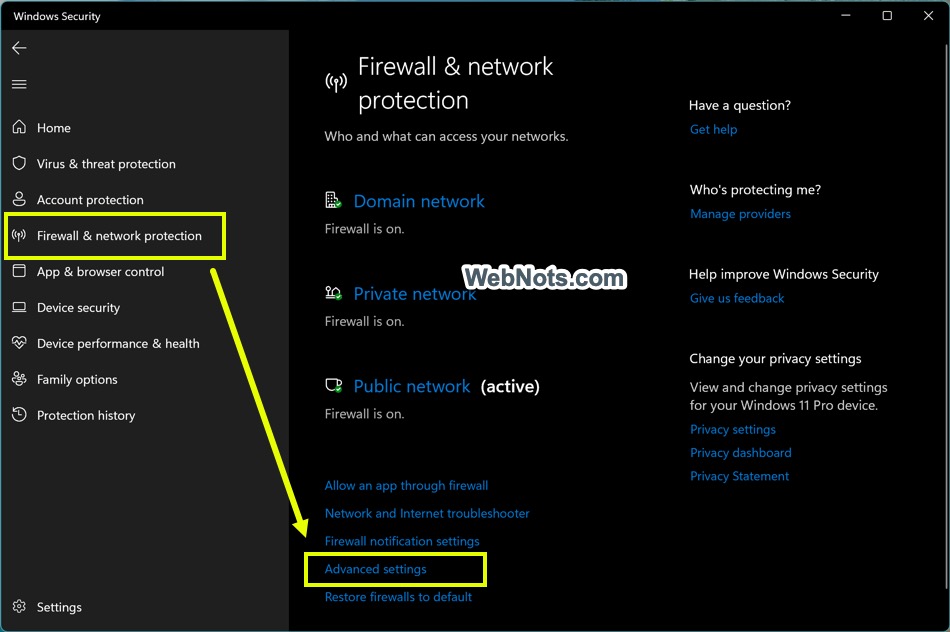
To check the firewall in Windows 11, open Settings, select Privacy & security, then Windows Security. Choose Firewall & network protection to view the status of the available network profiles and open the related settings.

The same area can also be opened by searching for Windows Security from the Start menu. The wording and layout may vary slightly between Windows versions.

Allowing an app through the firewall

If a trusted app cannot connect, it may need permission to communicate through the firewall. Before changing anything, confirm that the app is legitimate and that the connection is genuinely required.

  1. Open Windows Security and select Firewall & network protection.
  2. Choose Allow an app through firewall.
  3. Select Change settings if prompted for administrator permission.
  4. Find the app and allow it on the appropriate network profile. If it is not listed, use the option to add another app only when you know which programme you are approving.

Allowing an app through the firewall creates an exception. Avoid granting access on every profile unless it is necessary. In particular, an app that needs access on a trusted home network may not need the same access on public Wi-Fi.

Creating or reviewing firewall rules

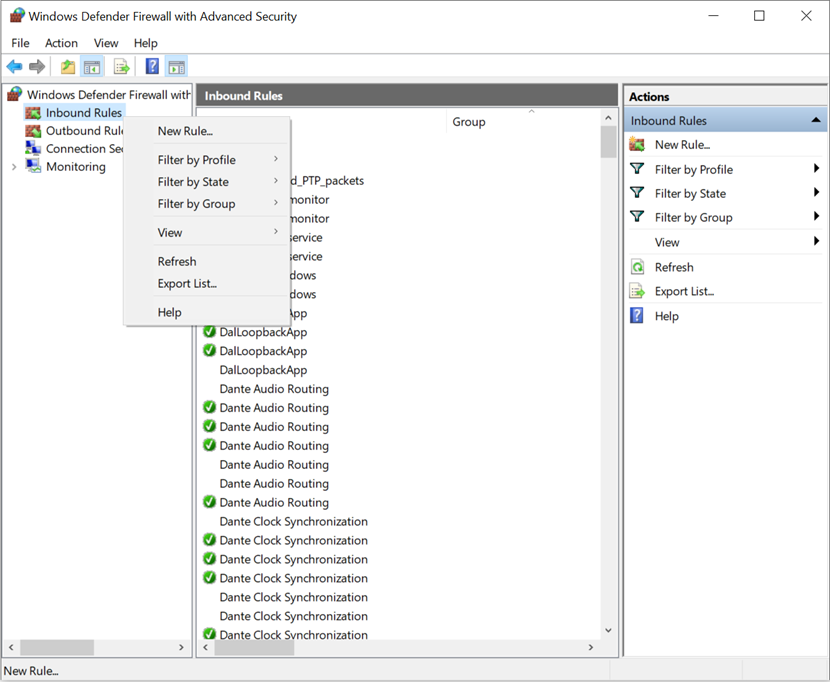
Windows includes Windows Defender Firewall with Advanced Security, which provides more detailed controls for inbound and outbound rules. It is available by searching for its name in the Start menu or through Windows administrative tools.

Advanced rules can be useful for managing specific applications, ports, protocols and network profiles. They can also be used by IT administrators to apply consistent policies across managed devices. However, changing rules without understanding their effect can disrupt apps or weaken security. If a computer is managed by an employer or school, check with the administrator before altering its firewall configuration.

Should you turn the firewall off?

In most cases, the firewall should remain switched on for every network profile. Turning it off removes an important layer of protection, particularly on public networks. If a connection problem appears to be caused by the firewall, it is usually safer to investigate the relevant app or rule than to disable the firewall altogether.

Do not run multiple firewalls that are not designed to work together. Some third-party security products manage the firewall themselves, and Windows may show a different status when another provider is active. Check the security software’s guidance before changing settings.

Good practice for staying protected

  • Keep Windows and your applications up to date.
  • Leave Microsoft Defender Firewall enabled unless a trusted administrator advises otherwise.
  • Use the public network profile for unfamiliar Wi-Fi networks.
  • Allow only trusted apps, and only on the profiles they need.
  • Review firewall alerts and settings rather than dismissing them automatically.
  • Use additional protections, such as strong passwords and multi-factor authentication, where available.

In summary

Windows Defender Firewall helps control network traffic to and from a Windows device. Its built-in protection is suitable for many home and business users when it is enabled and kept at its default settings. Understanding network profiles and app exceptions can help you resolve connection issues without opening more access than necessary.


8 Tips for Using Microsoft Defender Firewall Safely

  1. Keep Microsoft Defender Firewall turned on for all network profiles.
  2. Use private networks for trusted home or work connections.
  3. Treat public Wi‑Fi as a public network.
  4. Allow apps through the firewall only when necessary.
  5. Remove permissions for apps you no longer use.
  6. Avoid turning off the firewall to fix connection problems.
  7. Check firewall notifications before allowing access.
  8. Keep Windows updated to receive the latest security fixes.

Keep Microsoft Defender Firewall turned on for all network profiles.

Keep Microsoft Defender Firewall turned on for all network profiles to help protect your device from unauthorised network connections, wherever you’re connected. This is especially important on public Wi-Fi, such as in cafés, hotels or airports, where other users may be unfamiliar or untrusted. If an app or service has connection problems, check its firewall permissions rather than switching the firewall off.

Use private networks for trusted home or work connections.

Set a network to private only when it is one you trust, such as your home Wi-Fi or a secure workplace network. This profile can allow your computer to be discoverable by other devices and support features such as file and printer sharing. For unfamiliar connections, including public Wi-Fi in cafés or hotels, choose the public profile instead to keep your device less visible and apply stricter protection.

Treat public Wi‑Fi as a public network.

When connecting to public Wi-Fi in places such as cafés, hotels or airports, set the network profile to Public in Windows. This applies stricter sharing and discovery settings, helping limit how visible your device is to other people on the same network. Avoid switching to a Private profile just to make a connection work, and only allow apps through the firewall when you trust them and know they need network access.

Allow apps through the firewall only when necessary.

Allow apps through Windows Defender Firewall only when necessary, and only if you trust the app and understand why it needs network access. Each exception creates a route for communication with your device, so avoid granting access on every network profile by default. Choose only the profiles the app needs, and remove permissions you no longer use.

Remove permissions for apps you no longer use.

Review the apps allowed through Windows Defender Firewall from time to time and remove permissions for programmes you no longer use. An outdated or unnecessary exception may leave a route for network access that the app no longer needs. In Windows Security, open Firewall & network protection, select Allow an app through firewall, then review the list and remove any permissions that are no longer required. If your device is managed by work or school, check with your IT administrator before changing firewall settings.

Avoid turning off the firewall to fix connection problems.

Avoid turning off Windows Defender Firewall to fix connection problems, as this removes an important layer of protection and may leave your device exposed to unwanted network traffic. Instead, check whether the correct network profile is selected and review the firewall rules or app permissions for the programme experiencing difficulties. Only allow access for trusted apps, and seek help from your IT administrator if your device is managed by work or school.

Check firewall notifications before allowing access.

Before allowing an app through Windows Defender Firewall, read the notification carefully and check that you recognise both the app and why it needs network access. Pay attention to the network type: an app may be suitable for a trusted private network but not for public Wi-Fi. If the request is unexpected or you are unsure, deny access for now and verify the app with its developer or your IT administrator.

Keep Windows updated to receive the latest security fixes.

Keep Windows up to date so your device receives the latest security fixes and improvements. These updates can address vulnerabilities that attackers might exploit, helping Windows Defender Firewall work as part of a stronger overall security set-up. Enable automatic updates where possible, and restart your device when prompted to complete the installation.

GlassWire Firewall: A Visual Way to Monitor Network Activity

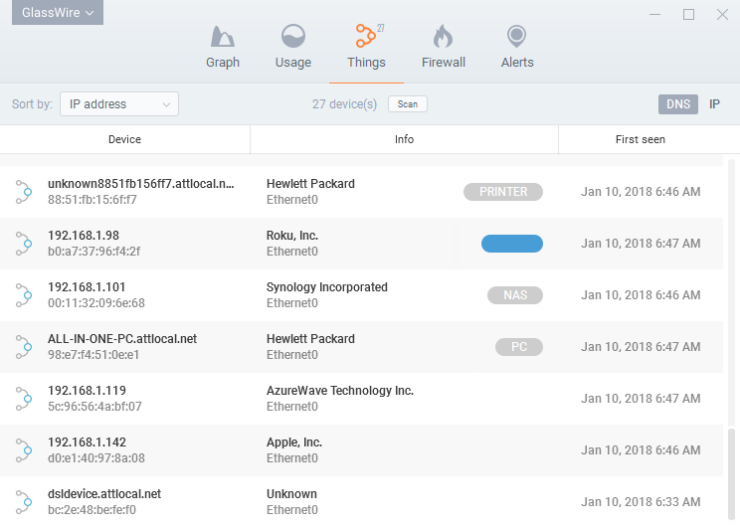
GlassWire is a network-monitoring application with firewall controls designed to make it easier to see which programmes are connecting to the internet. Rather than presenting network activity as a dense list of technical data, it uses charts, alerts and app-level information to help users understand what is happening on their devices.

How GlassWire works

On Windows, GlassWire works with the built-in Windows Firewall. Its interface provides a more accessible way to view network activity and manage whether individual applications can connect. When a programme accesses the network, GlassWire can show it in its activity timeline and let the user block or allow its connections through the firewall.

This distinction matters: GlassWire is not simply a replacement for Windows Firewall. Its firewall controls provide a convenient interface for managing Windows’ existing firewall, while its monitoring features help explain which applications are using the network and when.

Key features

  • Network activity graphs: View incoming and outgoing traffic over time and see which applications are using the connection.
  • Application controls: On Windows, manage network access for individual programmes through the firewall interface.
  • Connection details: Review information about network connections, including the applications involved and, where available, the remote hosts they contact.
  • Alerts: Receive notifications about selected changes or network events, such as a new application connecting to the internet.
  • Data-usage monitoring: Track network consumption and, depending on the version and platform, review usage over different periods.

GlassWire on Windows and Android

GlassWire is available for Windows and Android, but its features differ between platforms. The Windows edition includes firewall controls that work with Windows Firewall. The Android app focuses on monitoring network and mobile-data usage; Android’s system restrictions mean it does not provide the same app-blocking firewall controls as the Windows version.

Check GlassWire’s current product information before installing, as supported features, plan options and availability can change over time.

Who might find it useful?

GlassWire may suit people who want a clearer picture of their computer’s network activity without having to inspect technical logs manually. It can also be useful for investigating unexpected data use or checking which applications communicate online. Its visual presentation can make routine monitoring more approachable for home users and small organisations.

Things to consider

GlassWire’s alerts and graphs can help draw attention to unusual activity, but they do not prove that a connection is malicious. Legitimate applications often contact remote servers for updates, cloud services or other features. Review alerts in context and avoid blocking programmes unless you understand the possible consequences.

GlassWire should also be considered one part of a wider security approach, not a substitute for keeping software up to date, using reputable security tools and following safe online practices. Some features may depend on the edition or subscription, so compare current plans if you are considering it for regular use.

Conclusion

GlassWire combines an easy-to-read network monitor with firewall management on Windows, giving users a practical way to see which applications are communicating online. Its visual approach can make network activity easier to understand, while its alerts can help highlight changes worth checking. As with any monitoring tool, the information is most useful when interpreted carefully and used alongside other sound security measures.


GlassWire Firewall FAQs: Features, Safety and Pricing

  1. Is GlassWire free to use?
  2. How much does GlassWire cost?
  3. What is GlassWire used for?
  4. Is GlassWire safe?
  5. Is GlassWire a firewall?
  6. What is the purpose of GlassWire?

Is GlassWire free to use?

Yes, GlassWire offers a free version, although some features and usage limits may differ from its paid plans. The free edition can be useful for basic network monitoring, while advanced tools and additional capabilities may require a subscription. As plans and features can change, check GlassWire’s official website for the latest details.

How much does GlassWire cost?

GlassWire offers a free version, alongside paid plans with additional features; pricing can vary by plan, platform and billing period. Check the official GlassWire website for current prices and a comparison of what each option includes before choosing.

What is GlassWire used for?

GlassWire is used to monitor network activity and help users see which applications are connecting to the internet, how much data they are using and when connections occur. Its charts and alerts can make unusual activity easier to spot. On Windows, GlassWire also provides a convenient way to manage app access through Windows Firewall; its Android features differ and do not offer the same firewall controls.

Is GlassWire safe?

GlassWire is a legitimate network-monitoring application that can help you see which programmes are using your internet connection and, on Windows, manage their access through Windows Firewall. As with any software, download it from the official GlassWire website or a trusted app store, check the permissions it requests, and keep it up to date. GlassWire can help you review network activity, but it is not a guarantee against malware or other security threats, so use it alongside reputable security software and sensible online practices.

Is GlassWire a firewall?

Yes, GlassWire includes firewall controls on Windows, using the built-in Windows Firewall to help you allow or block individual applications’ network access. It also monitors and displays network activity, so you can see which programmes are connecting to the internet. GlassWire is not a standalone replacement for Windows Firewall, and its features vary by platform: the Android app focuses on monitoring and does not offer the same firewall controls.

What is the purpose of GlassWire?

GlassWire is designed to help you monitor and understand your device’s network activity. It shows which applications are using the internet, displays data usage and can alert you to certain network changes. On Windows, it also provides an interface for managing app access through Windows Firewall. GlassWire helps make network activity easier to review, but it is not a substitute for a complete security solution.

Microsoft Defender Firewall: What It Does and How to Use It

Microsoft Defender Firewall is a security feature built into Windows that helps control network traffic to and from a computer. It can block unwanted connections while allowing trusted apps and services to communicate. For most people, it provides an important layer of protection that should remain switched on.

What is Microsoft Defender Firewall?

A firewall applies rules to network connections. Microsoft Defender Firewall checks incoming and outgoing traffic against those rules, then allows or blocks it. By default, Windows generally blocks unsolicited incoming connections and allows outgoing connections, unless a rule or organisation policy says otherwise.

A firewall is not the same as antivirus software. Antivirus protection looks for malicious files and activity on a device, while a firewall controls network connections. They work together as parts of a broader security approach. A firewall cannot, on its own, prevent every online threat or make an unsafe download harmless.

Network profiles: Domain, Private and Public

Windows uses different firewall profiles depending on the type of network a device is connected to:

  • Domain: Used when a computer is connected to an organisation’s managed domain network. Settings may be controlled by an IT administrator.
  • Private: Intended for networks you trust, such as a home network. Some discovery and sharing features may be available, depending on your settings.
  • Public: Intended for networks you do not trust, such as public Wi-Fi in a café or hotel. Windows applies a more restrictive profile to reduce the chance of other devices connecting to your computer.

Choose the profile that reflects the network’s trustworthiness, rather than its name. A network called “Home” is not automatically safe. When in doubt, use the Public profile.

How to check your firewall settings

In Windows 11, open Settings, select Privacy & security, then Windows Security. Choose Firewall & network protection to view the active network profile and firewall status. The labels may vary slightly between Windows versions.

This page also provides links to allow an app through the firewall and to open the more detailed firewall settings. On managed work or school devices, some options may be unavailable because they are set by an administrator.

Allowing an app through the firewall

If a trusted app cannot connect to a network service, you may be able to create an exception. In Firewall & network protection, select Allow an app through firewall. Review the list, and only allow apps you recognise and trust. Where possible, allow access only on the network profiles the app needs.

Allowing an app through the firewall creates a specific exception; it does not mean the app is safe in every respect. Avoid adding exceptions for unfamiliar software, and remove exceptions that are no longer required. If a work application is blocked, contact your organisation’s IT support before changing settings.

Advanced firewall rules

For more detailed control, Windows includes Windows Defender Firewall with Advanced Security. You can open it by searching the Start menu for Windows Defender Firewall with Advanced Security or by running wf.msc.

Advanced Security lets an administrator create inbound and outbound rules based on details such as an application, port, protocol or network profile. This is useful for managing servers, business networks and specialist software, but changing rules without understanding their effect can interrupt services or expose a device to unwanted connections.

Should you turn Microsoft Defender Firewall off?

In general, no. Turning off the firewall can leave your computer more exposed to unwanted network connections. If a particular app or device is not working, investigate the relevant rule or network configuration rather than disabling protection altogether.

Some organisations use centrally managed firewall policies or other security products. If Windows reports that settings are managed by another provider, follow your organisation’s guidance. Do not run overlapping firewall products unless they are designed to work together.

Checking firewall status with PowerShell

On a personal computer, you can check the status of the three profiles in PowerShell with:

Get-NetFirewallProfile | Select-Object Name, Enabled

To enable the firewall for all profiles, an administrator can run:

Set-NetFirewallProfile -Profile Domain,Private,Public -Enabled True

Use administrative commands only when you understand the change and have permission to make it. On a managed device, your organisation’s policies may override local settings.

Logging and troubleshooting

If you need to investigate blocked traffic, the Advanced Security console includes monitoring and logging options. Logs can help identify whether a connection is being blocked, but interpreting them may require technical knowledge. For common connection problems, first check that Windows is using the correct network profile and that the app is allowed where appropriate.

If the issue continues, check the app’s own network requirements and consult its support documentation. On a work or school device, ask your IT team before changing firewall rules.

Key points

  • Microsoft Defender Firewall helps control network connections; it does not replace antivirus protection.
  • Keep the firewall switched on and use the Public profile for networks you do not trust.
  • Allow only trusted apps, and grant access only on the profiles they need.
  • Use advanced rules carefully, particularly on business or shared devices.

For most Windows users, the best approach is straightforward: leave Microsoft Defender Firewall enabled, choose network profiles thoughtfully and make exceptions only when there is a clear need.


5 Key Benefits of Microsoft Defender Firewall

  1. Built into Windows at no extra cost
  2. Helps block unwanted network connections
  3. Offers separate settings for network types
  4. Works alongside Microsoft Defender Antivirus
  5. Allows rules for trusted apps


Key Limitations of Microsoft Defender Firewall

  1. Limited advanced features for experienced users.
  2. Can block legitimate apps or services.
  3. Firewall rules can be complex to manage.
  4. Does not replace antivirus or other security measures.

Built into Windows at no extra cost

One of the main advantages of Microsoft Defender Firewall is that it is built into Windows at no extra cost. There is no separate firewall software to buy or install, and it works alongside Windows security features to help manage network connections. This makes it a convenient, budget-friendly option for individuals and organisations using Windows.

Helps block unwanted network connections

Microsoft Defender Firewall helps block unwanted network connections by checking incoming and outgoing traffic against its security rules. It can prevent unauthorised devices or services from connecting to your computer, while still allowing trusted apps to communicate when needed. This provides a useful layer of protection, particularly when you’re connected to a public or unfamiliar network.

Offers separate settings for network types

Microsoft Defender Firewall offers separate settings for domain, private and public networks, so protection can match the level of trust in each connection. For example, you can allow certain sharing features on a trusted home network while keeping tighter restrictions on public Wi-Fi. This flexibility helps balance convenience and security without applying the same rules everywhere.

Works alongside Microsoft Defender Antivirus

Microsoft Defender Firewall works alongside Microsoft Defender Antivirus to provide complementary layers of protection. Antivirus helps detect and block malicious files and activity on your device, while the firewall controls network connections to and from it. Together, they help protect Windows from different types of threats, making them a useful part of a broader security strategy.

Allows rules for trusted apps

Microsoft Defender Firewall lets you create rules that allow trusted apps to communicate over your network. This can help legitimate software work as expected while the firewall continues to block other unwanted connections. You can tailor access to the network profiles an app needs, such as Private or Domain, rather than allowing it everywhere. For greater security, only create exceptions for apps you recognise and trust, and remove rules you no longer need.

Limited advanced features for experienced users.

For experienced users, Microsoft Defender Firewall may feel limited compared with specialist firewall solutions. Windows includes advanced rules for managing network traffic, but it offers less built-in visibility, customisation and centralised control than some third-party tools. Users who need detailed traffic analysis, complex rule management or extensive reporting may find they need additional software or dedicated network security tools.

Can block legitimate apps or services.

Microsoft Defender Firewall can sometimes block legitimate apps or services if their network traffic does not match the firewall’s rules. This may prevent software from connecting to the internet, sharing files or communicating with other devices. If this happens, check that the app is trusted and allow it through the firewall only on the network profiles it needs. Avoid switching the firewall off completely, as this can leave your device less protected.

Firewall rules can be complex to manage.

Managing Microsoft Defender Firewall rules can be complex, particularly when an application needs specific access or a network has several devices and services. Rules may depend on factors such as the app, port, connection type and network profile, so changing the wrong setting can block legitimate traffic or leave a device less protected. This can make troubleshooting time-consuming, and advanced configurations may require help from an IT professional.

Does not replace antivirus or other security measures.

Microsoft Defender Firewall helps control network traffic, but it does not replace antivirus software or other security measures. It cannot, by itself, detect and remove every virus, block phishing attempts or protect you from unsafe downloads. For stronger protection, keep your antivirus and Windows updates current, use strong unique passwords and be cautious with links, attachments and unfamiliar websites.

The Importance of Checkpoint Cybersecurity in Safeguarding Your Digital Assets

In today’s interconnected world, where businesses rely heavily on digital infrastructure to operate efficiently, cybersecurity has become a paramount concern. With the increasing frequency and sophistication of cyber threats, organisations must implement robust security measures to protect their sensitive data and systems. One such critical component of cybersecurity is Checkpoint Security.

What is Checkpoint Cybersecurity?

Checkpoint Security is a comprehensive approach to safeguarding networks, data, and endpoints from cyber threats. It involves the deployment of advanced security solutions that monitor, detect, and prevent malicious activities in real-time. Checkpoint Security solutions are designed to provide multi-layered defence mechanisms that cover various entry points and attack vectors within an organisation’s IT infrastructure.

The Key Components of Checkpoint Cybersecurity

Checkpoint Cybersecurity encompasses a range of technologies and practices aimed at fortifying an organisation’s security posture. Some key components include:

  • Firewalls: Checkpoint firewalls act as the first line of defence by monitoring incoming and outgoing network traffic and blocking potential threats.
  • Intrusion Prevention Systems (IPS): IPS solutions identify and block suspicious network traffic that may indicate an ongoing cyber attack.
  • Endpoint Security: Protecting individual devices such as laptops, desktops, and mobile devices from malware and other cyber threats.
  • Threat Intelligence: Utilising real-time threat intelligence feeds to stay informed about emerging cyber threats and vulnerabilities.

The Benefits of Implementing Checkpoint Cybersecurity

By incorporating Checkpoint Security measures into their cybersecurity strategy, organisations can enjoy several benefits:

  • Enhanced Protection: Checkpoint Security provides a robust defence against a wide range of cyber threats, reducing the risk of data breaches and system compromises.
  • Improved Compliance: Many regulatory standards require organisations to have adequate cybersecurity measures in place. Implementing Checkpoint Security can help meet compliance requirements.
  • Faster Incident Response: With real-time monitoring capabilities, Checkpoint Security enables quick detection and response to potential security incidents before they escalate.
  • Cost Savings: Investing in proactive cybersecurity measures like Checkpoint Security can ultimately save organisations money by preventing costly data breaches or downtime.

In Conclusion

In conclusion, Checkpoint Cybersecurity plays a vital role in protecting organisations from the ever-evolving landscape of cyber threats. By implementing robust security measures across networks, endpoints, and data centres, businesses can mitigate risks and safeguard their digital assets effectively. As cyber attacks continue to grow in complexity, investing in Checkpoint Security is essential for maintaining a secure and resilient IT environment.

Contact us today to learn more about how our Checkpoint Cybersecurity solutions can help fortify your organisation’s defences against cyber threats.


Essential Cybersecurity Tips: Safeguarding Your Systems with Checkpoint Strategies

  1. Regularly update your security software and systems.
  2. Use strong, unique passwords for all your accounts.
  3. Enable two-factor authentication whenever possible.
  4. Be cautious of suspicious emails and links, especially from unknown sources.
  5. Backup your important data regularly to prevent data loss in case of an attack.
  6. Educate yourself and your team about cybersecurity best practices.
  7. Limit access to sensitive information only to those who need it.
  8. Monitor network activity for any unusual behaviour that may indicate a breach.

Regularly update your security software and systems.

Regularly updating your security software and systems is a crucial tip in maintaining a strong defence against cyber threats. Software updates often contain patches for known vulnerabilities and security weaknesses, ensuring that your systems are equipped to withstand the latest attack techniques. By staying current with updates, you can enhance the overall resilience of your cybersecurity infrastructure and reduce the risk of exploitation by malicious actors. Remember, proactive maintenance through regular updates is key to keeping your digital assets secure in an ever-evolving threat landscape.

Use strong, unique passwords for all your accounts.

It is crucial to use strong, unique passwords for all your accounts as part of effective checkpoint cybersecurity practices. Strong passwords that are complex and not easily guessable can significantly enhance the security of your accounts and data. By using unique passwords for each account, you reduce the risk of a security breach affecting multiple accounts if one password is compromised. Implementing this simple yet essential tip can serve as a fundamental barrier against cyber threats and help safeguard your digital assets from unauthorised access.

Enable two-factor authentication whenever possible.

Enabling two-factor authentication whenever possible is a crucial tip in bolstering your checkpoint cybersecurity measures. By requiring a second form of verification in addition to passwords, such as a unique code sent to your mobile device, two-factor authentication adds an extra layer of security that significantly reduces the risk of unauthorised access to your accounts or systems. This simple yet effective security measure can thwart many common cyber threats, including phishing attacks and password breaches, enhancing the overall protection of your digital assets and ensuring a more secure online experience.

In the realm of Checkpoint cybersecurity, it is crucial to exercise caution when encountering suspicious emails and links, particularly those originating from unfamiliar sources. Cybercriminals often use phishing emails and malicious links as a means to infiltrate networks and compromise sensitive data. By remaining vigilant and refraining from clicking on dubious links or attachments, individuals can significantly reduce the risk of falling victim to cyber attacks. Prioritising cybersecurity awareness and adopting a cautious approach to email communications are fundamental steps in safeguarding against potential threats in the digital landscape.

Backup your important data regularly to prevent data loss in case of an attack.

Backing up your critical data regularly is a fundamental tip in Checkpoint Cybersecurity to mitigate the risk of data loss in the event of a cyber attack. By maintaining up-to-date backups of your important information, you can ensure that even if your systems are compromised, you have a secure copy of your data that can be restored quickly and efficiently. This proactive measure not only safeguards your valuable assets but also provides peace of mind knowing that your business can recover swiftly from any potential security incident.

Educate yourself and your team about cybersecurity best practices.

To enhance your organisation’s cybersecurity posture, it is crucial to educate yourself and your team about cybersecurity best practices. By staying informed about the latest cyber threats, security trends, and recommended protocols, you can empower your team to recognise potential risks and take proactive measures to mitigate them effectively. Regular training sessions and awareness programmes can help instil a culture of security consciousness within your organisation, making everyone a frontline defender against cyber attacks. Remember, knowledge is power when it comes to safeguarding your digital assets from malicious actors.

Limit access to sensitive information only to those who need it.

In the realm of Checkpoint cybersecurity, a fundamental tip to enhance data protection is to restrict access to sensitive information solely to individuals who require it for their roles. By implementing strict access controls and permissions, organisations can minimise the risk of unauthorised access and inadvertent data leaks. This proactive measure not only bolsters security but also ensures that critical data remains confidential and safeguarded from potential cyber threats. Limiting access to sensitive information to authorised personnel is a cornerstone of an effective cybersecurity strategy that prioritises data privacy and integrity.

Monitor network activity for any unusual behaviour that may indicate a breach.

Monitoring network activity for any unusual behaviour is a crucial tip in Checkpoint cybersecurity. By actively observing and analysing network traffic, organisations can detect potential security breaches at an early stage. Unusual patterns such as unexpected data transfers, unauthorized access attempts, or unusual spikes in network traffic could indicate malicious activity. Promptly identifying and responding to these anomalies can help prevent data breaches and mitigate the impact of cyber attacks, ensuring the integrity and security of the organisation’s digital assets.

Intrusion Detection Systems in Network Security

Modern organisations rely on connected systems to store information, deliver services and communicate with customers. This connectivity also creates opportunities for cybercriminals. An intrusion detection system (IDS) helps security teams identify suspicious activity on a network or computer system, providing an important layer of protection against cyber threats.

What is an intrusion detection system?

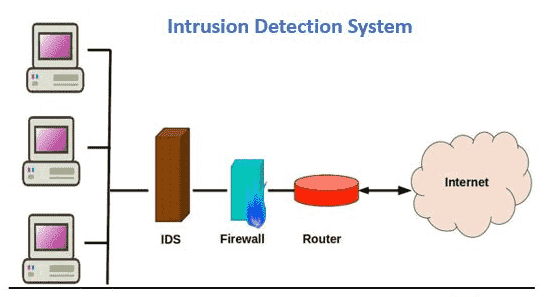
An intrusion detection system monitors network traffic or activity on devices for signs of potential attacks, unauthorised access or policy breaches. When it detects something unusual, it generates an alert so that a security team can investigate and decide what action to take.

An IDS is primarily designed to detect and report suspicious activity. Unlike an intrusion prevention system (IPS), it does not usually block traffic automatically. Some security products combine detection and prevention capabilities, but the two functions are distinct.

How does an IDS work?

An IDS gathers data from network connections, devices or applications and analyses it for indicators of risk. Depending on the system, it may compare activity with known attack patterns, establish a baseline of normal behaviour or use a combination of both approaches.

When the system identifies activity that meets a detection rule or appears abnormal, it records the event and sends an alert. The alert may include details such as the time of the event, the affected device, the traffic involved and the reason it was flagged. Analysts use this information to determine whether the event is a genuine threat or a false alarm.

Types of intrusion detection system

Network-based IDS

A network-based intrusion detection system (NIDS) monitors traffic moving across selected parts of a network. It can help identify suspicious connections, unusual traffic patterns and attempts to exploit known vulnerabilities. NIDS sensors are often placed at key points, such as network gateways or between important network segments.

Host-based IDS

A host-based intrusion detection system (HIDS) runs on an individual server, workstation or other device. It can monitor activity such as changes to important files, system logs, configuration settings and processes. A HIDS provides visibility into a particular device, complementing the broader view offered by a NIDS.

Other approaches

Some systems focus on wireless networks, while others monitor application activity or analyse behaviour across multiple systems. Organisations may use several types of IDS together to improve visibility across their environment.

Common detection methods

Signature-based detection

Signature-based detection looks for known patterns associated with malicious activity, such as recognisable attack sequences or suspicious data. It can be effective at identifying threats that have already been documented, but may not recognise new or significantly altered attacks. Its effectiveness also depends on keeping detection rules up to date.

Anomaly-based detection

Anomaly-based detection compares current activity with a baseline of expected behaviour. Unusual activity, such as an unexpected increase in data transfers or connections at an unfamiliar time, may trigger an alert. This method can help uncover previously unseen threats, although legitimate changes in usage may also generate alerts.

Stateful protocol analysis

Stateful protocol analysis examines network activity in the context of expected protocol behaviour. It can identify communications that do not follow established standards or appear inconsistent with normal use. This approach can provide useful insight, but needs to be configured with care to avoid overlooking valid activity.

Why is an IDS important?

An IDS can help organisations detect potential security incidents sooner and give teams a clearer view of activity across their networks. Its benefits include:

  • Earlier warning: Alerts can highlight suspicious behaviour before it develops into a more serious incident.
  • Greater visibility: Monitoring helps security teams understand what is happening across network segments or individual devices.
  • Incident investigation: Event records can support investigations and help establish what happened and when.
  • Policy monitoring: Detection rules can identify activity that may breach internal security policies.
  • Support for security operations: IDS alerts can contribute to wider monitoring and incident-response processes.

IDS limitations

An IDS is not a complete security solution. It can produce false positives, where legitimate activity is flagged as suspicious, and false negatives, where a genuine threat goes undetected. Large volumes of alerts can also make it difficult for teams to identify the most important events.

Encrypted traffic may limit what a network-based system can inspect, depending on how and where monitoring takes place. In addition, an IDS can only provide useful results when it is properly configured, maintained and reviewed. It does not replace measures such as access controls, patch management, secure configuration, backups or staff awareness.

Best practices for using an IDS

  • Define clear objectives: Decide which systems and risks need the most attention before selecting monitoring rules and locations.
  • Place sensors thoughtfully: Monitor critical network boundaries and segments, while considering performance and privacy requirements.
  • Keep rules and software current: Update signatures, detection logic and system components regularly.
  • Tune alerts: Review recurring false positives and adjust rules without weakening protection against genuine threats.
  • Establish an investigation process: Set out who reviews alerts, how incidents are escalated and what evidence should be retained.
  • Integrate with other controls: Where appropriate, combine IDS data with logs from firewalls, endpoint tools, identity systems and other security platforms.
  • Test and review: Regularly assess whether the system is detecting relevant activity and whether the response process works as intended.

Choosing an IDS

The right IDS depends on an organisation’s size, network design, regulatory obligations and available security expertise. Consider the environments it can monitor, the quality of its reporting, the effort required to manage alerts and how easily it integrates with existing tools. It is also important to assess how the system handles encrypted traffic and how its data collection aligns with privacy and retention policies.

Organisations should evaluate an IDS in the context of their wider security programme rather than treating it as a standalone product. A system that generates alerts without a clear process for reviewing and acting on them is unlikely to deliver its full value.

Conclusion

An intrusion detection system helps organisations identify suspicious activity by monitoring network traffic, devices or applications. It can strengthen security visibility and support faster investigations, but its effectiveness depends on good configuration, regular maintenance and a clear response process. Used alongside other security controls, an IDS can play a valuable role in protecting networks and managing cyber risk.


Essential Tips for Optimising Intrusion Detection Systems in Network Security

  1. Place sensors at key network entry and exit points.
  2. Keep detection rules and signatures up to date.
  3. Monitor alerts regularly and investigate unusual activity.
  4. Tune rules to reduce false alarms.
  5. Test the system and review its coverage routinely.

Place sensors at key network entry and exit points.

Place IDS sensors at key network entry and exit points, such as internet gateways and connections between critical network segments. These locations give the system visibility of traffic entering or leaving important parts of your network, helping it spot suspicious connections, unusual data transfers and potential attacks. Consider your network layout when positioning sensors, and check that they can monitor the relevant traffic without creating performance bottlenecks.

Keep detection rules and signatures up to date.

Keep your IDS detection rules and signatures up to date so it can recognise the latest known threats and attack techniques. Security vendors regularly release updates as new indicators are identified; applying them promptly helps reduce gaps in coverage. Review and test changes as part of your update process to ensure they suit your network and do not generate unnecessary alerts.

Monitor alerts regularly and investigate unusual activity.

Monitor intrusion detection system alerts regularly and investigate unusual activity promptly. Reviewing alerts as they arise can help your security team distinguish genuine threats from false positives, identify patterns that might otherwise go unnoticed and respond before a potential incident escalates. Make sure each alert is assessed, documented and escalated according to your incident-response procedures.

Tune rules to reduce false alarms.

Tune your IDS rules regularly to reduce false alarms and help security teams focus on genuine threats. Review alerts to identify patterns of legitimate activity that are being flagged, then adjust thresholds or create carefully scoped exceptions. Avoid disabling rules without assessing the risk, and revisit changes as your network and normal usage evolve.

Test the system and review its coverage routinely.

Test your intrusion detection system regularly and review what it can see across your network. Confirm that sensors are collecting data from critical systems and network segments, and use safe, authorised tests to check that relevant activity generates the expected alerts. Review any gaps, outdated rules or false alarms, then update the system as your network changes. Routine testing helps ensure the IDS remains useful and that security teams can respond confidently to the events it detects.

Cisco Secure Firewall: An Overview

Cisco Secure Firewall is a family of network security products designed to control traffic entering, leaving and moving within an organisation’s network. It combines traditional firewall functions with capabilities such as intrusion prevention, application visibility and, depending on the model and licences in use, threat detection and URL filtering.

It is used by organisations ranging from smaller businesses to large enterprises and service providers. Deployments may use physical appliances, virtual appliances or cloud-based options, depending on the environment and the organisation’s requirements.

What does Cisco Secure Firewall do?

At its core, a firewall applies rules to network traffic. These rules can allow or block connections based on factors such as source and destination addresses, ports, protocols and network zones. Cisco Secure Firewall can also provide more detailed inspection to help security teams understand what applications are in use and identify potentially harmful activity.

Depending on the product configuration and subscriptions, capabilities may include:

  • Access control: Rules to manage which users, devices and networks can communicate.
  • Intrusion prevention: Inspection to detect and help block known attack patterns and suspicious traffic.
  • Application visibility and control: Information about applications using the network, with options to apply policies to them.
  • Threat and malware features: Additional analysis and protection options available through relevant Cisco services and licences.
  • URL filtering: Controls for access to websites, subject to the selected features and licensing.
  • VPN connectivity: Support for secure connections between sites and, where configured, remote users.
  • Logging and reporting: Records and dashboards to help administrators investigate events and review policy activity.

Available functions vary by appliance, software version, licence and deployment. Organisations should confirm the capabilities of the specific model and subscription before planning a rollout.

Management and deployment

Cisco Secure Firewall appliances can be managed using different Cisco management options. These include local device management for certain deployments and centralised management through Cisco Secure Firewall Management Center. Cisco also offers cloud-managed approaches for supported environments. The right choice depends on the size of the network, the number of devices, operational preferences and the features required.

Centralised management can be useful when teams need to apply consistent policies across multiple firewalls, review events in one place or manage changes through a shared workflow. Local management may suit simpler environments with fewer devices. Administrators should check current Cisco documentation for supported combinations of hardware, software and management tools.

How it fits into a security strategy

A firewall is an important security control, but it is not a complete security strategy on its own. Effective protection also relies on well-designed network rules, timely software updates, secure identity practices, endpoint protection, monitoring and incident response procedures.

For example, a firewall may restrict access to sensitive systems, while identity controls help ensure that only authorised users can connect. Logging and monitoring can then help a security team investigate unusual behaviour. Combining these controls can provide a clearer picture of network risk than relying on a single product.

Planning a Cisco Secure Firewall deployment

Before selecting or upgrading a firewall, organisations should establish what the network needs to support. Useful questions include:

  • How much traffic must the firewall inspect, including encrypted traffic?
  • Which applications and services are business-critical?
  • Are high availability and resilient internet connections required?
  • Will the firewall protect a branch office, data centre, campus or cloud environment?
  • Which security features are needed, and what licences do they require?
  • How will policies, alerts and logs be managed day to day?
  • What is the plan for testing, maintenance and software updates?

Performance planning is especially important. Inspection features can affect throughput, and actual capacity depends on traffic patterns, enabled services and appliance configuration. Sizing should therefore be based on realistic requirements rather than headline figures alone.

Migration and ongoing management

Moving from an existing firewall requires careful preparation. Teams should review current rules, remove obsolete or overly broad access, map network zones and identify dependencies between systems. A staged migration, supported by testing and a rollback plan, can reduce disruption. Where older Cisco platforms or configurations are involved, compatibility and migration paths should be checked against Cisco’s current guidance.

After deployment, regular review remains essential. Administrators should monitor alerts, verify that rules still reflect business needs, apply updates in line with change-control procedures and test recovery arrangements. Clear ownership of firewall policies helps prevent unnecessary exceptions from accumulating over time.

Is Cisco Secure Firewall right for your organisation?

Cisco Secure Firewall may be suitable for organisations seeking a firewall platform with options for centralised management and additional network security features. The best fit depends on the required protection, existing Cisco infrastructure, staff expertise, licensing costs and the organisation’s operating model.

A careful assessment of network design, security requirements and total cost of ownership can help determine whether a particular Cisco Secure Firewall appliance and configuration is appropriate. Comparing it with other available solutions—and validating performance in the intended environment—can support a more informed decision.


Top 5 Tips for Optimising Your Cisco Secure Firewall

  1. Use least-privilege rules and remove unused access policies.
  2. Keep firewall software and threat definitions up to date.
  3. Enable logging for important traffic and security events.
  4. Review intrusion-prevention and malware settings regularly.
  5. Back up configurations before changes and test them afterwards.

Use least-privilege rules and remove unused access policies.

Apply the principle of least privilege to Cisco Secure Firewall rules by allowing only the traffic, users and services required for business operations. Review access policies regularly, remove rules that are obsolete or unused, and document the purpose of those that remain. This helps reduce unnecessary exposure, makes policies easier to manage and can support more effective security monitoring. Before removing a rule, check for dependencies and test the change to avoid disrupting legitimate services.

Keep firewall software and threat definitions up to date.

Keep Cisco Secure Firewall software and threat definitions up to date to help protect your network against newly discovered vulnerabilities and emerging threats. Apply updates in line with your organisation’s change-management process: review Cisco’s release notes, check compatibility with your appliances and management tools, and test changes where possible before deploying them across your environment. Regular updates help ensure that security features and detection capabilities continue to work as intended.

Enable logging for important traffic and security events.

Enable logging for important traffic and security events on Cisco Secure Firewall to give your team useful information for monitoring activity and investigating potential threats. Record events such as blocked connections, access to sensitive network segments and suspected intrusion attempts, while avoiding excessive logging that could obscure significant alerts or consume resources. Review logs regularly, set up appropriate alerts and ensure records are retained securely for as long as your organisation’s policies and compliance requirements demand.

Review intrusion-prevention and malware settings regularly.

Review intrusion-prevention and malware settings regularly to ensure they reflect current threats and your organisation’s security needs. Check that relevant policies and signatures are up to date, investigate alerts and confirm that protection is enabled where required. Regular reviews can help identify gaps, reduce unnecessary alerts and keep Cisco Secure Firewall working effectively as your network and risks change.

Back up configurations before changes and test them afterwards.

Before making changes to a Cisco Secure Firewall, back up the current configuration so you can restore it if something goes wrong. Once the update is complete, test the firewall thoroughly to confirm that security policies, network connections and essential services are working as expected. This simple step can help minimise disruption and make changes easier to reverse.