
Cyber Security Tech Companies: What They Do and How to Choose One

Cyber security technology companies help organisations protect their systems, data and people from digital threats. Their products and services range from software that detects suspicious activity to expert support that helps businesses respond to an attack. As organisations rely on cloud platforms, connected devices and online services, these companies play an increasingly important role in managing risk.

What do cyber security companies do?

The sector includes many kinds of organisations. Some develop security products, while others provide consultancy, monitoring or incident-response services. Many combine several of these approaches.

  • Security software providers develop tools such as endpoint protection, firewalls, identity and access management, encryption and vulnerability-scanning software.
  • Managed security service providers monitor networks and systems, investigate alerts and help customers maintain security controls. Some operate a security operations centre around the clock.
  • Incident-response specialists support organisations during and after cyber attacks. Their work may include containing an incident, investigating its cause and helping restore affected systems.
  • Cyber security consultancies assess risk, review security arrangements and advise on areas such as cloud security, staff training and regulatory requirements.
  • Testing and assurance firms carry out activities such as penetration testing, security audits and vulnerability assessments to identify weaknesses before they are exploited.

Key areas of cyber security technology

Cyber security companies work across a wide range of specialisms. The right solution depends on an organisation’s size, systems, data and risk profile.

Identity and access management

Identity solutions help organisations control who can access applications, devices and information. Features may include multi-factor authentication, single sign-on and privileged access management. Strong identity controls can reduce the risk of compromised accounts being used to enter business systems.

Endpoint and network security

Endpoint tools protect devices such as laptops, servers and mobile phones. Network security technologies help control and inspect traffic moving between systems. Modern products may use behavioural analysis to flag activity that differs from normal patterns, rather than relying only on known threat signatures.

Cloud security

Cloud security products and services help protect data and workloads hosted with cloud providers. They can help identify misconfigurations, manage permissions and monitor activity across cloud environments. Responsibility is often shared between the cloud provider and its customer, so organisations need to understand which security tasks they must manage themselves.

Security monitoring and threat detection

Monitoring platforms gather and analyse security information from across an organisation. These tools can help teams spot suspicious behaviour, prioritise alerts and investigate potential incidents. Technology is only part of the picture: effective monitoring also depends on skilled people, clear processes and well-maintained systems.

Data protection and recovery

Encryption, data loss prevention and secure backup technologies help protect information from unauthorised access, accidental disclosure or disruption. Back-ups are particularly important for recovery, but they should be protected from attackers and tested regularly.

Why organisations work with cyber security tech companies

Many organisations do not have all the expertise or resources needed to manage every aspect of cyber security in-house. A specialist provider may offer access to experienced professionals, established tools and support outside normal working hours. External expertise can also help an organisation identify gaps in its existing defences or prepare for a security assessment.

Working with a provider does not transfer all responsibility for security. Organisations still need to manage user access, apply updates, protect sensitive information and make sure staff know how to report suspicious activity. A supplier should complement a well-run internal security programme, not replace it.

How to choose a cyber security company

Choosing a provider begins with understanding the problem to be solved. A business looking for help with regulatory requirements may need a different service from one seeking continuous monitoring or specialist incident response.

  • Define the requirement: Set out the systems, data and risks the service needs to cover.
  • Check relevant experience: Ask about work with organisations of a similar size or in a similar sector, while recognising that previous results do not guarantee future outcomes.
  • Understand the service: Clarify what is included, who will respond to alerts and what happens if an incident occurs.
  • Review data handling: Find out what information the provider collects, where it is stored, who can access it and how long it is retained.
  • Ask about reporting: Reports should explain findings in clear language and help the organisation decide what to do next.
  • Assess integration and support: Check that the technology works with existing systems and that the supplier offers suitable implementation and ongoing support.
  • Review contractual details: Understand service levels, responsibilities, costs, renewal terms and arrangements for ending the contract.

Independent certifications and recognised frameworks can provide useful evidence of a provider’s processes, but they should be considered alongside practical factors such as expertise, transparency and service quality. Organisations should also carry out appropriate due diligence before sharing sensitive information or granting access to systems.

The role of people and processes

Technology can help detect and prevent many threats, but no product can guarantee complete protection. Cyber security also depends on people and processes: staff training, secure configuration, timely software updates, access reviews and a tested incident-response plan all matter.

A strong approach usually combines preventive controls with monitoring and recovery planning. This helps an organisation reduce the likelihood of an attack, detect problems sooner and limit disruption if something goes wrong.

Looking ahead

Cyber security technology companies continue to adapt as threats and business systems change. Cloud adoption, artificial intelligence, automation and increasingly connected devices are influencing how security tools are developed and used. These technologies can improve detection and response, but they also create new risks that organisations need to assess carefully.

For businesses, the most useful provider is not necessarily the one with the largest range of products. It is the one that understands the organisation’s needs, explains its capabilities clearly and helps turn security findings into practical action. With the right combination of technology, expertise and internal good practice, organisations can build a more resilient approach to cyber security.


Cyber Security Companies and Expertise in the UK: Frequently Asked Questions

  1. Which company is best for cyber security?
  2. What are some reputable cybersecurity companies in the UK?
  3. What are the 7 types of cyber security?
  4. Is the UK good for cybersecurity?
  5. What company has cyber security?

Which company is best for cyber security?

There is no single cyber security company that is best for every organisation; the right choice depends on your size, industry, systems, budget and specific risks. Compare providers’ relevant experience, services, support arrangements, security credentials, data-handling practices and contract terms, and ask how their solution will fit with your existing systems. The best provider is one that can clearly explain how it will address your needs and help you manage risk over time.

What are some reputable cybersecurity companies in the UK?

Reputable cyber security companies in the UK include NCC Group, Sophos, BAE Systems Digital Intelligence, Darktrace and Bridewell. They offer a range of services, from security software and threat detection to consultancy, testing and incident response. The right choice depends on your organisation’s needs, so compare each provider’s specialisms, relevant experience, certifications, support arrangements and customer references before making a decision.

What are the 7 types of cyber security?

There is no single universally agreed list, but seven commonly recognised areas of cyber security are network security, which protects computer networks; endpoint security, which safeguards devices such as laptops and servers; application security, which helps prevent flaws in software; cloud security, which protects cloud-based systems and data; data security, which prevents information from being accessed or altered without authorisation; identity and access management, which controls who can use systems and resources; and Internet of Things (IoT) security, which protects connected devices. These areas overlap, and organisations typically combine them to build a more complete security strategy.

Is the UK good for cybersecurity?

Yes, the UK is widely regarded as a strong place for cyber security, with a well-established technology sector, specialist companies, skilled professionals and support from government and industry organisations. Businesses can find providers covering areas such as security software, consultancy, threat monitoring and incident response. However, the right choice depends on the organisation’s needs, budget and risk profile, so it is sensible to compare providers, check their experience and confirm exactly what their services include.

What company has cyber security?

Many companies provide cyber security products and services, rather than there being just one cyber security company. Examples include Microsoft, Cisco, CrowdStrike and Palo Alto Networks, which offer tools for areas such as identity protection, network security and threat detection. Specialist consultancies and managed security providers also help organisations monitor systems, assess risks and respond to incidents. The right provider depends on your organisation’s needs, existing technology and budget, so compare services and check exactly what support is included.
Cookie Compliance with OneTrust: A Practical Guide for UK Businesses

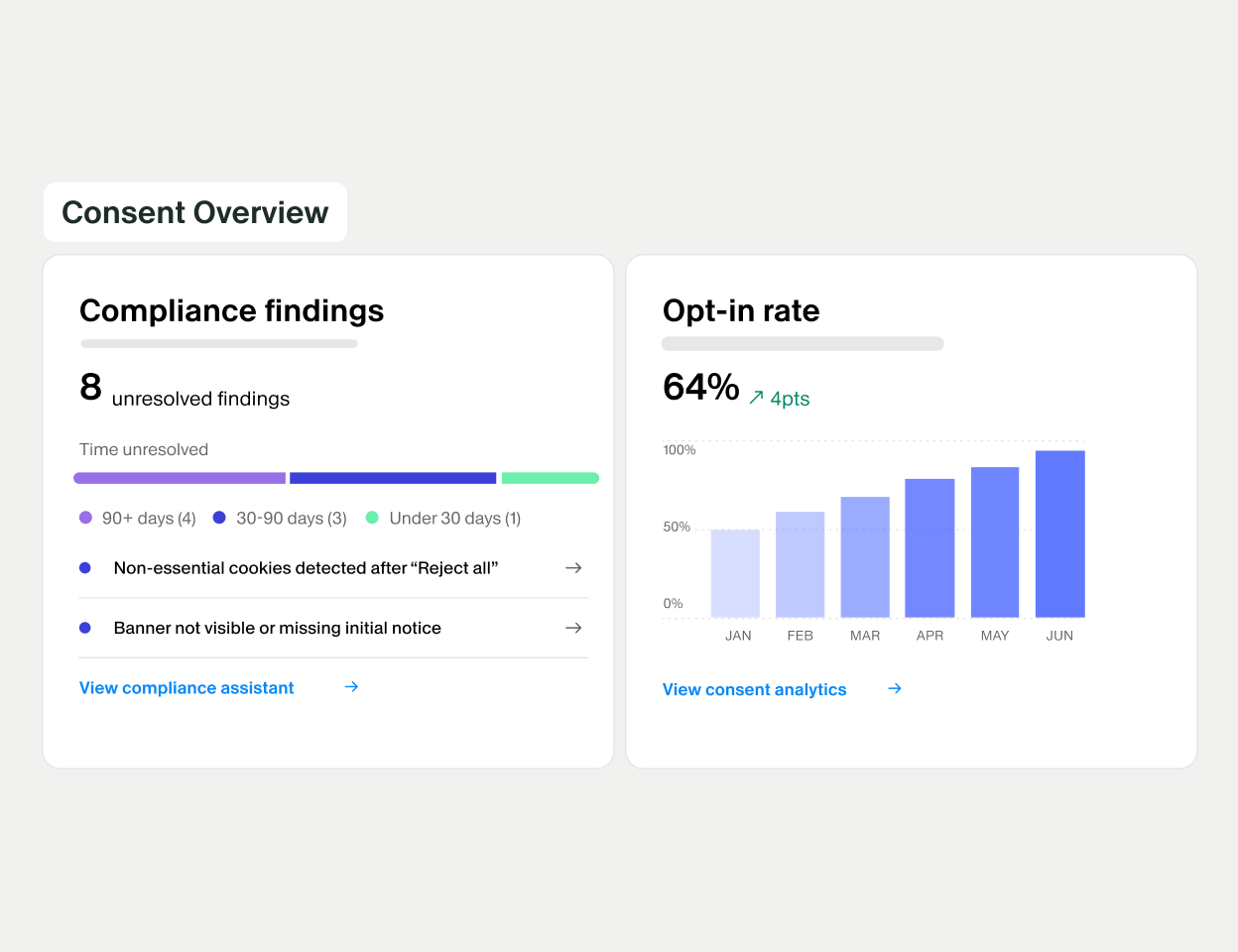
Cookies and similar technologies help websites remember preferences, understand how visitors use their pages and deliver relevant advertising. But they can also collect information about people, so businesses need to manage them in line with applicable privacy and electronic communications rules.

OneTrust provides consent management tools that can help organisations identify cookies, present choices to visitors and maintain records of consent. However, using a platform does not automatically make a website compliant. The configuration, wording and ongoing management all matter.

What does cookie compliance involve?

In the UK, the use of cookies and similar technologies is principally covered by the Privacy and Electronic Communications Regulations (PECR). Where information collected through these technologies is personal data, UK data protection law may also apply.

In general, visitors must receive clear information about non-essential cookies and be given a genuine choice before those cookies are stored or accessed on their device. Strictly necessary cookies may be treated differently, but the exemption is limited: a cookie is not “strictly necessary” simply because it is useful to the organisation.

For example, cookies that keep items in a shopping basket or support a service specifically requested by a visitor may qualify as necessary. Analytics, personalisation and advertising cookies will generally require consent unless a specific exemption applies. Businesses should assess each technology and its purpose rather than relying on broad labels.

How OneTrust can support cookie compliance

OneTrust’s consent management platform can help businesses manage several parts of the cookie compliance process. Depending on the product and configuration, this may include:

  • Cookie discovery: scanning a website to identify cookies and similar technologies in use.
  • Cookie categorisation: organising technologies into groups, such as necessary, functional, analytics and advertising.
  • Consent banners: displaying a notice that explains cookie use and offers visitors appropriate choices.
  • Preference centres: allowing visitors to review and change their cookie preferences.
  • Consent records: recording choices and related information to support accountability.
  • Tag and script controls: helping prevent selected technologies from running until the required consent has been given.

These features can make consent management easier to operate, especially for organisations with multiple websites or a large number of marketing and analytics tools. Their effectiveness depends on accurate setup and regular review.

Setting up OneTrust for a UK website

Find out what your website uses

Begin by reviewing cookies, tags, pixels, plug-ins and other technologies used across your site. Automated scans can help, but they may not identify every technology or explain its purpose correctly. Check the results against your content management system, tag manager, analytics platform and advertising tools.

Categorise technologies accurately

Classify each item according to what it does and why it is used. Avoid placing a technology in the necessary category merely to ensure it loads. If a cookie has several purposes, assess those purposes carefully and consider whether separate controls are needed.

Write a clear notice

Your banner should explain, in straightforward language, that the site uses cookies and provide an accessible route to more information. Visitors should be able to understand their options without having to search through lengthy or confusing text.

Offer a meaningful choice

Where consent is required, visitors should be able to accept or reject non-essential cookies with comparable ease. The design should not steer people towards accepting through prominent colours, confusing button labels or repeated prompts. Consent should be given through a clear affirmative action, rather than assumed from continued browsing or pre-selected settings.

Ensure preferences are respected

Configure the consent tool and connected tags so that non-essential cookies and similar technologies do not run before the necessary consent is obtained. Test the site in different browsers and on mobile devices. Check that rejecting cookies works, that preferences persist as intended and that visitors can change or withdraw their choice later.

Keep your cookie information up to date

Publish a cookie notice or policy that explains the technologies used, their purposes, relevant providers and how visitors can manage their choices. Review it when the website changes, when new vendors are added and after significant updates to your analytics or advertising setup.

Common mistakes to avoid

  • Assuming that installing OneTrust alone makes a website compliant.
  • Relying on an automated scan without checking its results.
  • Calling analytics or advertising cookies strictly necessary without a proper assessment.
  • Loading non-essential scripts before a visitor has made a choice.
  • Making rejection harder than acceptance.
  • Failing to provide a simple way to revisit or withdraw consent.
  • Forgetting to check cookies set by embedded videos, social media tools and third-party plug-ins.

Ongoing checks are essential

Cookie compliance is not a one-off task. Websites change frequently, and a new plug-in, campaign or analytics feature can introduce additional technologies. Schedule regular scans and manual checks, review consent settings after releases, and make sure teams responsible for marketing and development know the process for adding new tools.

It is also important to consider how consent choices interact with connected services, such as tag managers and advertising platforms. Technical integrations should be tested rather than assumed to work correctly.

Choosing and configuring a consent management platform

OneTrust can provide a structured way to manage cookie notices and visitor preferences, but organisations remain responsible for deciding which technologies they use and how those technologies are configured. A carefully maintained consent platform can support a compliant approach; it cannot replace a clear understanding of the website’s data practices or appropriate legal advice where needed.

For UK businesses, the strongest approach combines accurate cookie discovery, clear information, a fair choice, reliable technical blocking and regular review. OneTrust can help bring these activities together, provided it is configured to reflect the organisation’s actual website and obligations.


6 Tips for Cookie Compliance with OneTrust

  1. Use OneTrust to scan your site and identify cookies and trackers.
  2. Classify cookies by purpose and keep records up to date.
  3. Get consent before setting non-essential cookies.
  4. Make accept and reject options equally clear.
  5. Let visitors change or withdraw consent at any time.
  6. Review consent settings after site or vendor changes.

Use OneTrust to scan your site and identify cookies and trackers.

Use OneTrust to scan your website and identify the cookies and other tracking technologies it uses. Review the scan results carefully, as automated scans may not detect every tracker or correctly identify its purpose. Confirm where each cookie comes from, what information it collects and whether it is essential or requires consent. Repeat scans regularly, particularly after adding new features, plug-ins or marketing tools, so your cookie notice and consent settings remain accurate.

Classify cookies by purpose and keep records up to date.

Classify each cookie according to its actual purpose—such as strictly necessary, functional, analytics or advertising—rather than grouping them under broad or convenient labels. Accurate categorisation helps visitors make informed choices and ensures consent settings are applied appropriately. Keep your records up to date by reviewing cookie scans, checking new tags and third-party tools, and updating your OneTrust configuration and cookie notice whenever your website changes.

Before setting or accessing non-essential cookies, obtain the visitor’s consent. Configure OneTrust and any connected tag managers to hold back analytics, advertising and other non-essential technologies until the visitor makes an active choice. Make it just as easy to reject these cookies as to accept them, and ensure the site respects the visitor’s choice across pages and visits.

Make accept and reject options equally clear.

When configuring your OneTrust cookie banner, make the “Accept” and “Reject” options equally clear and easy to use. Give both buttons similar prominence, use straightforward wording and avoid design choices that steer visitors towards accepting non-essential cookies. A balanced choice helps people make an informed decision and supports a more transparent consent experience.

Give visitors an easy, ongoing way to change or withdraw their cookie consent—not just when they first arrive on your website. With OneTrust, you can provide a clearly visible link to the preference centre, where people can review their choices and update them whenever they wish. Make sure the change takes effect promptly, including stopping any non-essential cookies or tags that are no longer permitted. This supports a transparent experience and helps your organisation meet its consent obligations.

Review consent settings whenever your website or its vendors change. A new plug-in, analytics tool, advertising partner or site update may introduce cookies or similar technologies that are not covered by your existing settings. Re-scan and test the site, check that each technology is correctly categorised, and confirm that non-essential cookies remain blocked until visitors have given consent. Update your cookie notice and preference centre where needed, so the information visitors see reflects what the site actually does.

Privileged Access Management in Azure AD: A Practical Guide

Privileged accounts can make significant changes to an organisation’s identity systems, applications and cloud resources. If one is compromised or misused, the consequences may include data exposure, service disruption or loss of control over critical systems. Privileged access management (PAM) helps reduce these risks by controlling who can use powerful permissions, when they can use them and how that use is monitored.

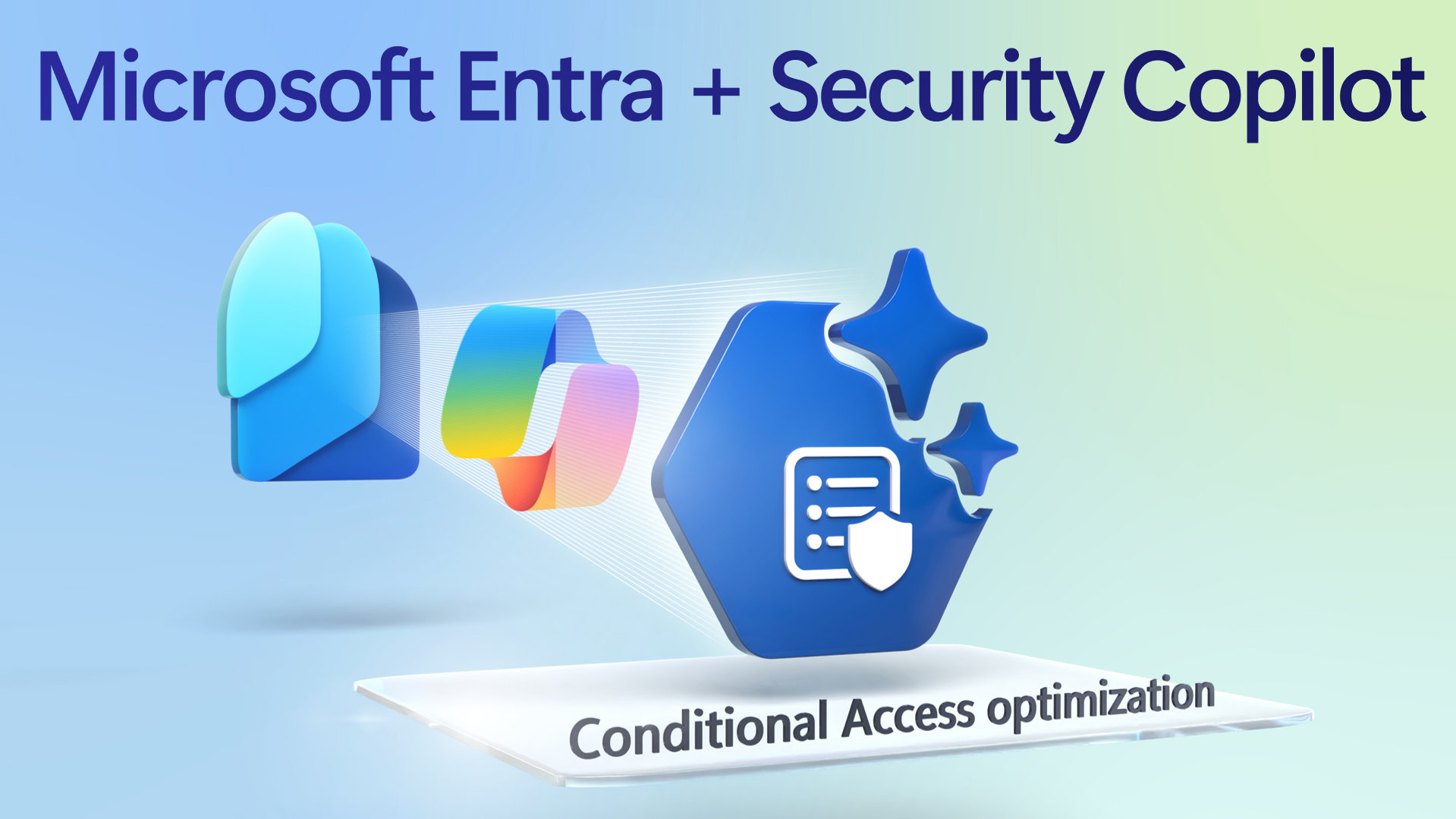
Azure Active Directory (Azure AD) is now called Microsoft Entra ID. The name has changed, but the need to manage administrative access remains. Microsoft Entra Privileged Identity Management (PIM) provides tools to govern access to Microsoft Entra roles, Azure resource roles and certain privileged groups.

What is privileged access management?

Privileged access management is the set of policies and processes used to protect accounts and permissions with elevated access. These may include Global Administrators, Security Administrators, subscription Owners and other roles that can manage users, security settings or cloud infrastructure.

A common security weakness is keeping users permanently assigned to powerful roles, even when those permissions are only needed occasionally. PAM addresses this through controls such as just-in-time access, approval requirements, multi-factor authentication (MFA), time limits and activity reviews.

How Microsoft Entra PIM works

Microsoft Entra PIM lets administrators manage privileged role assignments using two main access states:

  • Eligible: The user is authorised to activate the role when required, but does not hold its permissions continuously.
  • Active: The role is currently enabled and its permissions can be used.

An eligible user can activate a role for a defined period. Depending on the organisation’s configuration, activation may require MFA, a business justification or approval from another person. The assignment can then expire automatically, reducing the risk of standing privileges being left in place.

PIM can also provide alerts and audit information to help administrators review role assignments and activation activity. Exact features and licensing requirements vary, so check current Microsoft licensing guidance before planning a deployment.

Why use PIM for Azure AD and Microsoft Entra ID?

Using PIM can help organisations:

  • Reduce standing access: Keep powerful permissions inactive until they are needed.
  • Limit the impact of compromised accounts: Require additional checks before privileged permissions become active.
  • Improve accountability: Record who activated a role, when they did so and, where required, why.
  • Support access reviews: Regularly check whether users still need privileged access.
  • Strengthen governance: Apply consistent approval, authentication and expiry rules to administrative roles.

PIM is not a replacement for secure account practices, monitoring or a broader identity security strategy. It is one important layer in a defence-in-depth approach.

Directory roles and Azure resource roles

It is important to distinguish between roles in Microsoft Entra ID and roles used to manage Azure resources.

Microsoft Entra roles control directory tasks, such as managing users, applications, authentication methods or security settings. Examples include Global Administrator, User Administrator and Security Administrator.

Azure role-based access control (Azure RBAC) roles control access to Azure resources, such as subscriptions, resource groups and virtual machines. Examples include Owner, Contributor and Reader. PIM can be used to manage eligible assignments for supported Azure roles, as well as eligible assignments for supported directory roles.

Assign permissions at the narrowest practical scope. For instance, a person who only needs to manage one resource group should not automatically receive broad subscription-level permissions.

Setting up privileged access management

A successful PIM deployment starts with a clear understanding of the organisation’s current access. The following steps provide a practical starting point.

  1. Identify privileged accounts and roles. Review directory roles, Azure RBAC assignments, privileged groups and service accounts. Look for permanent assignments that are no longer required.
  2. Define who needs access. Confirm role ownership and business need with the relevant service or system owners. Avoid assigning broad roles for convenience.
  3. Move suitable users to eligible assignments. Where appropriate, replace permanent active assignments with eligible access that must be activated when required.
  4. Set activation controls. Consider requiring MFA, a justification, approval and a limited activation duration. Use stronger controls for highly sensitive roles.
  5. Configure notifications and reviews. Send alerts for important role changes and activations, and schedule regular access reviews.
  6. Test the process. Trial the configuration with a small group. Check that authorised staff can activate access promptly and that approval and expiry behave as expected.
  7. Monitor and improve. Review audit records, investigate unexpected activity and adjust policies as roles and business needs change.

Best practices for managing privileged access

  • Use least privilege. Grant only the permissions needed for a person’s duties, at the smallest suitable scope.
  • Keep routine accounts separate. Use a dedicated administrative account for privileged tasks rather than browsing email or the web with an account that holds elevated permissions.
  • Require strong authentication. Apply MFA and appropriate authentication policies to administrative users, including during role activation where supported.
  • Keep activation periods short. Set durations that suit the task, rather than leaving privileged roles active longer than necessary.
  • Use approval selectively. Approval can add oversight for sensitive roles, but the approval process must be available when legitimate work is urgent.
  • Review access regularly. Remove assignments that are unused, outdated or no longer supported by a clear business need.
  • Protect emergency access accounts. Maintain carefully controlled emergency accounts for exceptional situations. Monitor their use, secure their credentials and test them periodically.
  • Monitor service principals and automation. Human role activation is only part of the picture. Review application permissions, managed identities and other non-human identities as well.
  • Plan for operational resilience. Ensure there are appropriate administrators and approval routes available during holidays, incidents or staff changes.

Common mistakes to avoid

One frequent mistake is treating PIM as a one-off configuration exercise. Role assignments, business responsibilities and cloud environments change, so access needs ongoing review. Another is applying approval requirements without ensuring that approvers are available or that an emergency process exists.

Organisations should also avoid relying on PIM alone to protect highly privileged accounts. Strong authentication, secure workstations, careful credential handling, logging and incident response remain essential. Finally, emergency access accounts should not become routine administrator accounts; their purpose and use should be clearly defined.

Conclusion

Privileged access management in Azure AD, now Microsoft Entra ID, helps organisations control and monitor access to their most powerful identity and cloud roles. By using eligible assignments, time-limited activation, strong authentication, approval where appropriate and regular reviews, teams can reduce unnecessary standing privileges without preventing administrators from doing their work.

The best results come from treating PIM as part of a wider security programme: understand who has access, grant only what is needed, monitor how privileges are used and review the arrangements regularly.


Azure AD Privileged Access Management: 5 Frequently Asked Questions

  1. What is privileged access management in Azure AD?
  2. How does Privileged Identity Management (PIM) work in Azure AD?
  3. How do I enable just-in-time privileged access in Azure AD?
  4. What is the difference between Azure AD roles and Azure resource roles?
  5. What are the best practices for securing privileged accounts in Azure AD?

What is privileged access management in Azure AD?

Privileged access management in Azure AD—now called Microsoft Entra ID—is the process of controlling and monitoring access to accounts and roles with elevated permissions. Microsoft Entra Privileged Identity Management (PIM) helps organisations limit permanent administrator access by allowing authorised users to activate eligible roles only when needed, often for a set period and with controls such as multi-factor authentication, approval or a reason for activation. This reduces standing privileges and helps improve oversight of sensitive administrative activity.

How does Privileged Identity Management (PIM) work in Azure AD?

Privileged Identity Management (PIM) in Azure AD, now Microsoft Entra ID, helps control access to powerful directory and Azure roles. Instead of keeping users permanently active in privileged roles, administrators can assign them as eligible, allowing them to activate access only when needed and for a limited time. Activation can require multi-factor authentication, a reason for access or approval, depending on the organisation’s settings. PIM also provides audit information and alerts to help administrators review privileged activity and keep access aligned with business needs.

How do I enable just-in-time privileged access in Azure AD?

To enable just-in-time privileged access in Azure AD, now called Microsoft Entra ID, use Microsoft Entra Privileged Identity Management (PIM). In the Microsoft Entra admin centre, open PIM, choose the relevant directory role and assign the user as **Eligible** rather than permanently active. Configure activation settings such as MFA, a business justification, approval and a maximum activation duration, then save the changes. When access is needed, the user requests activation through PIM and receives the role for the approved period. Check that your organisation has the required licence and test the settings with a small group before rolling them out.

What is the difference between Azure AD roles and Azure resource roles?

Azure AD roles, now known as Microsoft Entra roles, control access to identity and directory tasks, such as managing users, groups, applications and security settings. Azure resource roles control what users can do with Azure resources, such as virtual machines, storage accounts and subscriptions. For example, a User Administrator manages directory users, while an Azure Contributor can create and manage resources within an assigned scope. The two role types are managed separately, so assign only the permissions needed and at the narrowest suitable scope.

What are the best practices for securing privileged accounts in Azure AD?

Best practices for securing privileged accounts in Azure AD (now Microsoft Entra ID) include applying least privilege, using separate accounts for administrative tasks and requiring strong multi-factor authentication. Use Privileged Identity Management (PIM) to make access eligible and time-limited, with approval and justification for sensitive roles where appropriate. Review role assignments regularly, remove permissions that are no longer needed, and monitor sign-ins, role activations and changes to privileged accounts. Protect emergency access accounts with secure credentials and alerts, and test them periodically so they remain available for genuine emergencies.