
Windows Defender Firewall: What It Does and How to Use It
Windows Defender Firewall is a security feature built into Windows that helps protect a computer from unwanted network traffic. It monitors connections and applies rules to decide which traffic is allowed through. By limiting unauthorised access, it can help reduce the risk of attacks and unwanted communication with your device.
In newer versions of Windows, the feature is generally called Microsoft Defender Firewall. It is included with Windows and works alongside other security measures, such as Microsoft Defender Antivirus, but the firewall and antivirus have different jobs.
How the firewall works
A firewall checks network traffic against a set of rules. These rules can allow or block connections based on factors such as the application involved, the type of network, and whether the connection is incoming or outgoing.
- Inbound traffic is data coming into your computer from another device or the internet. Blocking unexpected inbound connections helps prevent other devices from reaching services on your PC.
- Outbound traffic is data leaving your computer. Windows Firewall also supports rules for controlling outbound connections, although its default configuration is generally designed to allow normal outgoing activity unless a rule says otherwise.
When an app needs to communicate across a network, Windows may ask whether to allow it. The choice can depend on the network profile in use, so it is worth checking that the app and network are recognised before granting access.
Network profiles: domain, private and public
Windows uses network profiles to apply different firewall settings in different situations:
- Domain: Used when a device is connected to a network managed by an organisation, such as a workplace domain.
- Private: Intended for trusted networks, such as a home network. Devices may be able to discover one another, depending on the settings and services enabled.
- Public: Intended for untrusted networks, such as Wi-Fi in a café, hotel or airport. This profile applies stricter protections and is usually the safer choice for unfamiliar networks.
Windows may ask whether a newly detected network should be treated as public or private. Choose the profile that reflects how much you trust the network. A public network should not be marked private simply to make file sharing or device discovery easier.
Checking firewall status
To check the firewall in Windows 11, open Settings, select Privacy & security, then Windows Security. Choose Firewall & network protection to view the status of the available network profiles and open the related settings.
The same area can also be opened by searching for Windows Security from the Start menu. The wording and layout may vary slightly between Windows versions.
Allowing an app through the firewall
If a trusted app cannot connect, it may need permission to communicate through the firewall. Before changing anything, confirm that the app is legitimate and that the connection is genuinely required.
- Open Windows Security and select Firewall & network protection.
- Choose Allow an app through firewall.
- Select Change settings if prompted for administrator permission.
- Find the app and allow it on the appropriate network profile. If it is not listed, use the option to add another app only when you know which programme you are approving.
Allowing an app through the firewall creates an exception. Avoid granting access on every profile unless it is necessary. In particular, an app that needs access on a trusted home network may not need the same access on public Wi-Fi.
Creating or reviewing firewall rules
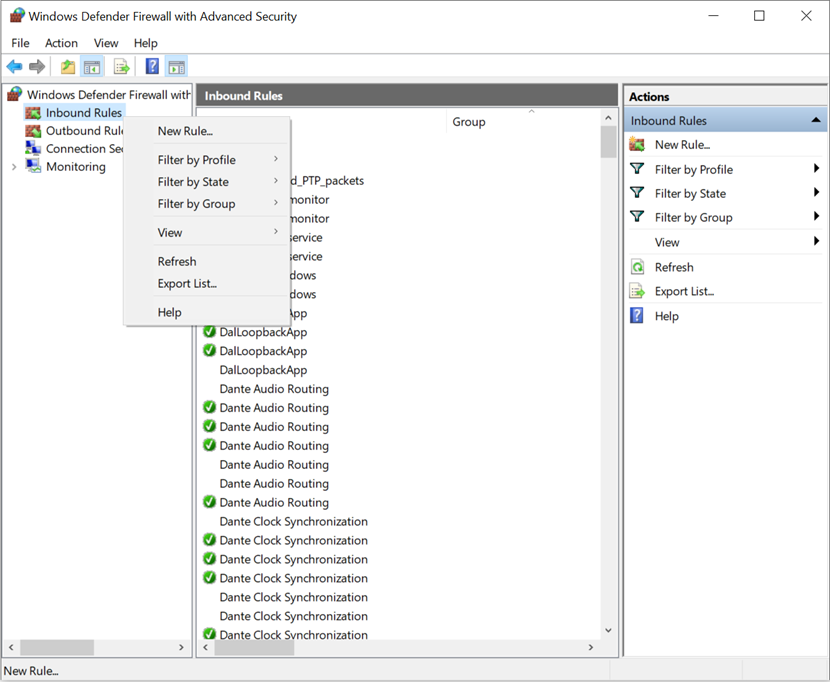
Windows includes Windows Defender Firewall with Advanced Security, which provides more detailed controls for inbound and outbound rules. It is available by searching for its name in the Start menu or through Windows administrative tools.
Advanced rules can be useful for managing specific applications, ports, protocols and network profiles. They can also be used by IT administrators to apply consistent policies across managed devices. However, changing rules without understanding their effect can disrupt apps or weaken security. If a computer is managed by an employer or school, check with the administrator before altering its firewall configuration.
Should you turn the firewall off?
In most cases, the firewall should remain switched on for every network profile. Turning it off removes an important layer of protection, particularly on public networks. If a connection problem appears to be caused by the firewall, it is usually safer to investigate the relevant app or rule than to disable the firewall altogether.
Do not run multiple firewalls that are not designed to work together. Some third-party security products manage the firewall themselves, and Windows may show a different status when another provider is active. Check the security software’s guidance before changing settings.
Good practice for staying protected
- Keep Windows and your applications up to date.
- Leave Microsoft Defender Firewall enabled unless a trusted administrator advises otherwise.
- Use the public network profile for unfamiliar Wi-Fi networks.
- Allow only trusted apps, and only on the profiles they need.
- Review firewall alerts and settings rather than dismissing them automatically.
- Use additional protections, such as strong passwords and multi-factor authentication, where available.
In summary
Windows Defender Firewall helps control network traffic to and from a Windows device. Its built-in protection is suitable for many home and business users when it is enabled and kept at its default settings. Understanding network profiles and app exceptions can help you resolve connection issues without opening more access than necessary.
8 Tips for Using Microsoft Defender Firewall Safely
- Keep Microsoft Defender Firewall turned on for all network profiles.
- Use private networks for trusted home or work connections.
- Treat public Wi‑Fi as a public network.
- Allow apps through the firewall only when necessary.
- Remove permissions for apps you no longer use.
- Avoid turning off the firewall to fix connection problems.
- Check firewall notifications before allowing access.
- Keep Windows updated to receive the latest security fixes.
Keep Microsoft Defender Firewall turned on for all network profiles.
Keep Microsoft Defender Firewall turned on for all network profiles to help protect your device from unauthorised network connections, wherever you’re connected. This is especially important on public Wi-Fi, such as in cafés, hotels or airports, where other users may be unfamiliar or untrusted. If an app or service has connection problems, check its firewall permissions rather than switching the firewall off.
Use private networks for trusted home or work connections.
Set a network to private only when it is one you trust, such as your home Wi-Fi or a secure workplace network. This profile can allow your computer to be discoverable by other devices and support features such as file and printer sharing. For unfamiliar connections, including public Wi-Fi in cafés or hotels, choose the public profile instead to keep your device less visible and apply stricter protection.
Treat public Wi‑Fi as a public network.
When connecting to public Wi-Fi in places such as cafés, hotels or airports, set the network profile to Public in Windows. This applies stricter sharing and discovery settings, helping limit how visible your device is to other people on the same network. Avoid switching to a Private profile just to make a connection work, and only allow apps through the firewall when you trust them and know they need network access.
Allow apps through the firewall only when necessary.
Allow apps through Windows Defender Firewall only when necessary, and only if you trust the app and understand why it needs network access. Each exception creates a route for communication with your device, so avoid granting access on every network profile by default. Choose only the profiles the app needs, and remove permissions you no longer use.
Remove permissions for apps you no longer use.
Review the apps allowed through Windows Defender Firewall from time to time and remove permissions for programmes you no longer use. An outdated or unnecessary exception may leave a route for network access that the app no longer needs. In Windows Security, open Firewall & network protection, select Allow an app through firewall, then review the list and remove any permissions that are no longer required. If your device is managed by work or school, check with your IT administrator before changing firewall settings.
Avoid turning off the firewall to fix connection problems.
Avoid turning off Windows Defender Firewall to fix connection problems, as this removes an important layer of protection and may leave your device exposed to unwanted network traffic. Instead, check whether the correct network profile is selected and review the firewall rules or app permissions for the programme experiencing difficulties. Only allow access for trusted apps, and seek help from your IT administrator if your device is managed by work or school.
Check firewall notifications before allowing access.
Before allowing an app through Windows Defender Firewall, read the notification carefully and check that you recognise both the app and why it needs network access. Pay attention to the network type: an app may be suitable for a trusted private network but not for public Wi-Fi. If the request is unexpected or you are unsure, deny access for now and verify the app with its developer or your IT administrator.
Keep Windows updated to receive the latest security fixes.
Keep Windows up to date so your device receives the latest security fixes and improvements. These updates can address vulnerabilities that attackers might exploit, helping Windows Defender Firewall work as part of a stronger overall security set-up. Enable automatic updates where possible, and restart your device when prompted to complete the installation.