
Microsoft Azure AD Privileged Identity Protection: A Guide to Microsoft Entra PIM
Microsoft Azure Active Directory (Azure AD) Privileged Identity Management is now called Microsoft Entra Privileged Identity Management (PIM). It helps organisations manage, monitor and control access to important roles and resources across Microsoft Entra ID, Azure and other supported services.
Rather than giving administrators permanent access by default, PIM enables organisations to grant privileged access only when it is needed, for a limited period and under defined conditions. This approach can reduce the risk of compromised accounts, accidental changes and excessive permissions.
What is Microsoft Entra Privileged Identity Management?
Microsoft Entra PIM is a service for managing privileged access through just-in-time and time-limited assignments. An administrator can be made eligible for a role, meaning they can activate it when required, instead of holding that role permanently.
When activating an eligible role, a user may need to complete checks such as multifactor authentication (MFA), provide a reason, obtain approval or meet other organisational requirements. The role can then be activated for a set period before access expires.
PIM can help manage:
- Microsoft Entra directory roles, such as Global Administrator or User Administrator
- Azure resource roles, such as Owner or Contributor
- Privileged access to eligible groups, where supported and configured
Why use PIM?
Standing administrative access creates an attractive target for attackers. If an account with broad permissions is compromised, an attacker may be able to make significant changes to users, applications, policies or cloud resources.
PIM helps address this risk by supporting the principle of least privilege: users should have only the access they need, for only as long as they need it. It also gives security teams greater visibility into privileged role assignments and activations.
Key features
Eligible and time-limited role assignments
With an eligible assignment, a user must activate a role before using its privileges. Administrators can set activation limits and assignment end dates, helping to prevent access from continuing indefinitely.
Activation controls
Organisations can apply requirements to role activation. Depending on the role and configuration, these can include MFA, a business justification, approval from designated approvers or a maximum activation duration.
Approval workflows
For sensitive roles, an organisation can require approval before activation. This creates an additional check, although approval processes should be designed so that urgent operational work can still be handled appropriately.
Alerts and notifications
PIM can notify administrators about certain privileged-role events and potential configuration issues. These notifications can help teams investigate unexpected assignments or activations more quickly.
Access reviews
Access reviews help organisations check whether users still need privileged access. Regular reviews can identify assignments that are no longer appropriate and support the removal of unnecessary permissions.
Audit history
PIM records information about role assignments and activations. These records can support investigations, operational oversight and compliance processes. Retention and availability of audit data depend on the relevant Microsoft services and organisational configuration.
How to implement PIM
- Identify privileged roles. Review which roles are in use and determine which users genuinely need them.
- Reduce permanent access. Where practical, replace permanent active assignments with eligible assignments.
- Set activation requirements. Configure suitable controls, such as MFA, justification and approval for sensitive roles.
- Choose sensible activation periods. Keep access long enough for legitimate work, but avoid unnecessarily lengthy activations.
- Configure notifications and reviews. Make sure the right people are alerted and that assignments are reviewed on a regular schedule.
- Test the process. Confirm that authorised users can activate roles when needed and that emergency procedures are documented.
Best practices for protecting privileged access
- Keep the number of permanent administrators to a minimum.
- Use separate accounts for administrative tasks where appropriate, rather than using privileged accounts for routine work.
- Require strong authentication for privileged users and protect their sign-in methods.
- Use approval requirements for highly sensitive roles, while ensuring approvers are available.
- Review eligible and active assignments regularly, including those for groups and Azure resources.
- Monitor PIM activity and investigate unexpected activations or changes.
- Maintain documented emergency access arrangements and test them safely.
- Apply least privilege to applications and service principals as well as human users.
PIM and Microsoft Entra ID Protection
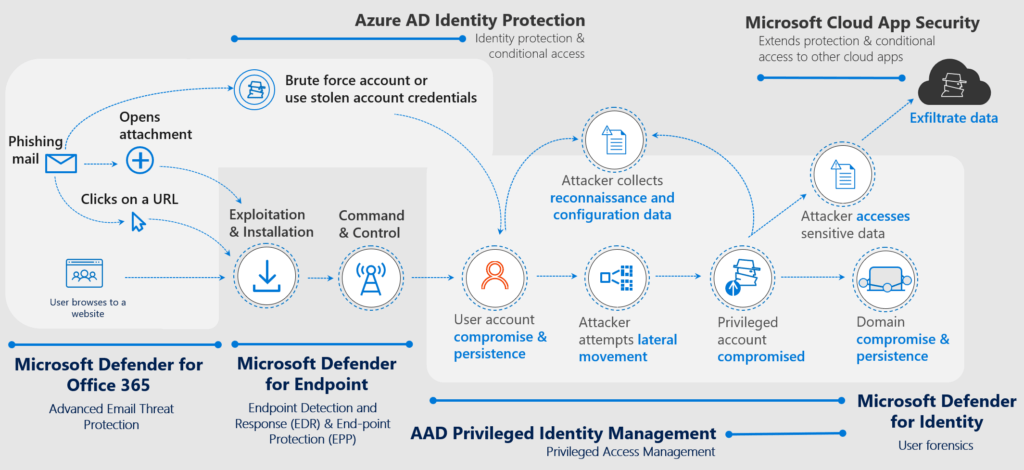
Microsoft Entra PIM and Microsoft Entra ID Protection are related security capabilities, but they serve different purposes. PIM manages privileged roles and access. Identity Protection identifies and assesses identity-related risks, such as risky users or sign-ins, and can inform actions through policies and other controls.
Using the services together can strengthen an identity security programme: PIM limits when privileged access is available, while risk-focused controls can help detect or respond to suspicious identity activity. Exact capabilities depend on licensing and configuration.
Licensing and planning
Microsoft licensing requirements can vary by PIM feature, role type, tenant configuration and the Microsoft services being managed. Before implementation, check current Microsoft licensing guidance for the specific capabilities your organisation plans to use. Also consider who will administer PIM, who will approve activations and how access reviews will be managed.
Conclusion
Microsoft Entra Privileged Identity Management provides practical controls for limiting and overseeing administrative access. By using eligible assignments, time-bound activation, appropriate approval checks and regular reviews, organisations can reduce standing privileges and improve visibility of privileged activity.
PIM is most effective as part of a broader security strategy that includes strong authentication, careful role design, monitoring and well-tested emergency procedures.
Microsoft Azure AD Privileged Identity Management and Protection: Frequently Asked Questions
- What is the difference between Microsoft PIM and Pam?
- What is Azure Active Directory Azure AD identity protection?
- What is an Azure identity provider?
- What does “privileged identity management” mean?
- Is Azure Active Directory now an Entra ID?
- Which license is required to use Azure AD privileged identity management?
What is the difference between Microsoft PIM and Pam?
Microsoft Privileged Identity Management (PIM), now part of Microsoft Entra, is a specific service for managing, controlling and monitoring access to privileged roles in Microsoft Entra ID and Azure. Privileged access management (PAM) is the broader security practice of controlling elevated access across an organisation’s systems, which may include cloud services, on-premises infrastructure, applications and administrator accounts. In short, PIM is a Microsoft tool that supports PAM; it does not necessarily cover every privileged account or system in an organisation.
What is Azure Active Directory Azure AD identity protection?
Azure Active Directory (Azure AD) Identity Protection, now called Microsoft Entra ID Protection, is a security service that detects and assesses risks to user accounts and sign-ins, such as suspicious login activity or potentially compromised credentials. It provides risk reports and can work with Conditional Access policies to require extra verification, restrict access or prompt administrators to investigate and remediate affected accounts.
What is an Azure identity provider?
An Azure identity provider is a service that verifies a user’s identity and helps them sign in to applications and services. Microsoft Entra ID, formerly Azure Active Directory (Azure AD), can act as an identity provider by authenticating users and issuing security tokens that applications use to grant access. It supports features such as single sign-on and multifactor authentication, and can also work with other identity providers to manage access for employees, partners and customers.
What does “privileged identity management” mean?
Privileged identity management means controlling and monitoring access to an organisation’s most powerful accounts and roles. In Microsoft Entra ID (formerly Azure AD), Privileged Identity Management (PIM) helps ensure that administrators receive elevated permissions only when they need them, for a limited time and subject to safeguards such as multi-factor authentication, approval or a reason for activation. This reduces unnecessary permanent access and helps protect important systems and data.
Is Azure Active Directory now an Entra ID?
Yes. Microsoft Azure Active Directory (Azure AD) was renamed Microsoft Entra ID in 2023. The name changed, but the service’s core identity and access-management capabilities remain. Some older documentation and products may still refer to Azure AD, while current Microsoft materials use Entra ID. Microsoft Entra Privileged Identity Management (PIM), formerly Azure AD Privileged Identity Management, helps manage and control privileged access to Entra ID roles and other supported resources.
Which license is required to use Azure AD privileged identity management?
To use Microsoft Azure AD Privileged Identity Management (now called Microsoft Entra Privileged Identity Management, or PIM), your organisation generally needs a Microsoft Entra ID P2 or Microsoft Entra ID Governance licence. Users who benefit from PIM features—such as those assigned eligible roles, approving activations or carrying out access reviews—may also need the appropriate licence. Some Microsoft 365 plans, including Microsoft 365 E5, include Entra ID P2; check Microsoft’s current licensing guidance to confirm your specific requirements.