
Google Apps SSO and Identity and Access Management
Single sign-on (SSO) can make it easier for people to access Google Workspace and other business applications while helping organisations manage access more consistently. When combined with identity and access management (IAM), SSO provides a framework for deciding who can sign in, which resources they can use and what security checks they must pass.
Google Workspace was previously known as G Suite, and its applications are sometimes still referred to as Google Apps. Whatever the name, effective identity management is essential: accounts should be protected, permissions should reflect job requirements, and access should be removed promptly when it is no longer needed.
What is SSO?
SSO allows a user to authenticate once through a trusted identity provider and then access several connected applications without signing in separately to each one. For example, an organisation might use Google as its identity provider for Google Workspace and a range of third-party services. Alternatively, it might use an external identity provider and configure Google Workspace to rely on it for authentication.
SSO commonly uses standards such as Security Assertion Markup Language (SAML) or OpenID Connect (OIDC). These protocols let an identity provider confirm a user’s identity to an application, known as a service provider or relying party. The application receives an authentication response rather than the user’s password.
Google Workspace and identity management
Google Workspace includes administrative tools for managing users, groups, devices and access to services. Google Cloud Identity can also provide identity and access management capabilities, including support for managing access to applications. The exact features available depend on the organisation’s products, configuration and subscription.
Google can play different roles in an SSO setup. It can act as the identity provider for third-party applications, or an organisation can connect Google Workspace to an external identity provider. The right arrangement depends on where user identities are managed, how existing systems are configured and which applications need to be included.
How Google Apps SSO works
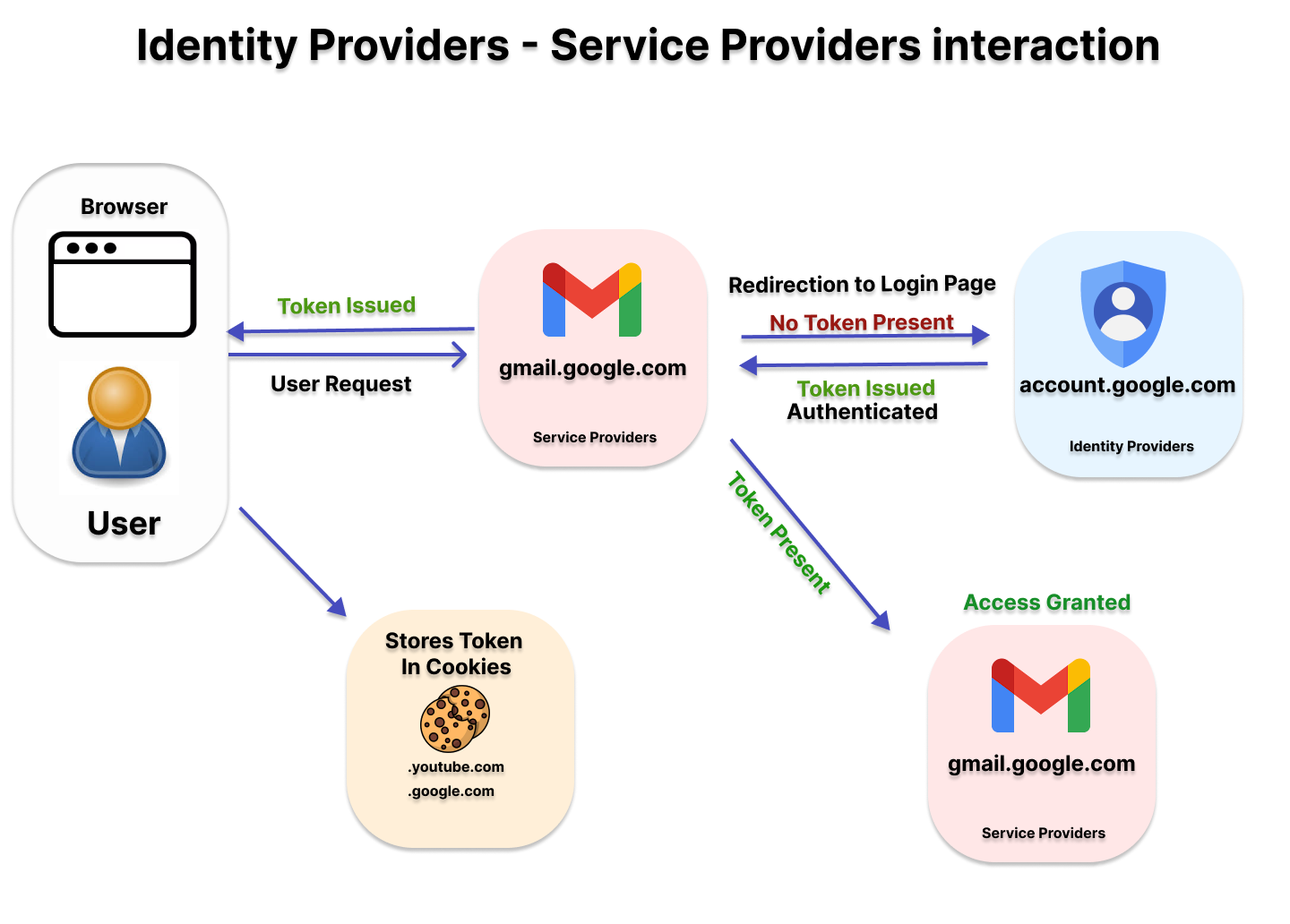
In a typical SSO flow, a user opens an application and is redirected to the configured identity provider. The user authenticates there, potentially completing a second security check such as multi-factor authentication (MFA). The identity provider then sends a signed response to the application, which verifies the response and grants access according to its own settings.
SSO does not automatically decide what a user is allowed to do inside every application. Authentication confirms identity; authorisation determines permissions. Application roles, Google Groups, directory attributes and other access policies may all contribute to authorisation, depending on the integration.
Benefits of combining SSO with IAM
- A simpler sign-in experience: Users can access connected services through a consistent authentication process, reducing the need to remember multiple passwords.
- Centralised control: Administrators can manage authentication policies and account access from a central identity system.
- Stronger security: SSO can be combined with MFA, sign-in risk controls and other safeguards supported by the organisation’s identity setup.
- More consistent access reviews: A clear view of users, groups and application assignments can help teams check whether access remains appropriate.
- Improved offboarding: Disabling a centrally managed account can help prevent further sign-ins, although separate application accounts and active sessions may require additional action.
Key IAM practices for Google Workspace
Use strong authentication
Require MFA for users, particularly administrators and anyone with access to sensitive information. Choose authentication methods that suit the organisation’s security requirements, and establish recovery procedures that do not create an easier route around the controls.
Apply least-privilege access
Give users only the permissions they need to do their work. Use groups and role-based access where practical, and avoid granting broad administrative rights to ordinary accounts. Review privileged roles regularly and separate day-to-day accounts from administrator accounts where appropriate.
Manage the user lifecycle
Define how accounts are created, changed and disabled when people join, move roles or leave. Where supported, automated provisioning and deprovisioning can help keep application access aligned with the organisation’s directory. Confirm how account changes affect connected applications, refresh tokens, existing sessions and data ownership.
Review application access
Maintain an inventory of applications connected to Google Workspace or the chosen identity provider. Check who owns each integration, which users can access it and whether its SSO configuration is still required. Remove obsolete integrations and access assignments, and review permissions after organisational changes.
Monitor and audit activity
Use available sign-in and administrative logs to investigate unusual activity, policy changes and access issues. Retain and review logs in line with operational, legal and regulatory requirements. Logging can support investigations, but it should be part of a wider process that includes alert handling and incident response.
Planning an SSO deployment
Before enabling SSO, document the intended design. Identify the authoritative source for user accounts, decide whether Google or another provider will handle authentication, and confirm which applications will be connected. Check the application’s supported protocols and requirements, including certificate management, sign-in URLs and user attribute mappings.
Test the configuration with a small group before rolling it out broadly. Keep a secure administrative route available in case of a configuration error, and communicate changes to users and support teams. It is also important to test account disabling, password or MFA recovery, and access to critical applications before relying on the setup in production.
Common challenges
SSO can simplify authentication, but it does not remove every identity risk. A compromised identity provider account may expose access to several connected services, so protecting administrator accounts and enforcing suitable authentication controls are especially important.
Other challenges can include inconsistent user records, applications that do not support the chosen SSO protocol, duplicate accounts and permissions that remain active after a user changes role. Some applications may also maintain their own user accounts or sessions, meaning that central sign-in controls alone may not fully revoke access.
Conclusion
Google Apps SSO can provide a convenient way to access Google Workspace and connected business applications, while IAM supplies the broader controls for managing identities, permissions and the user lifecycle. A well-designed approach combines SSO with MFA, least-privilege access, reliable provisioning, regular reviews and effective monitoring. The result is a more manageable sign-in experience and a stronger foundation for controlling access across an organisation.
7 Essential Tips for Secure Google Apps SSO and Identity and Access Management
- Enforce single sign-on through a trusted identity provider.
- Require multi-factor authentication for all users.
- Use security keys or passkeys for privileged accounts.
- Apply least-privilege access to apps and data.
- Automate account provisioning and deprovisioning.
- Review sign-in logs and access regularly.
- Set clear policies for session length and reauthentication.
Enforce single sign-on through a trusted identity provider.
Enforce single sign-on (SSO) through a trusted identity provider to give users a consistent way to access Google Workspace and connected applications, while keeping authentication policies under central control. Choose a provider that meets your organisation’s security and availability requirements, configure the integration carefully, and protect sign-ins with multi-factor authentication where appropriate. Test the setup before rolling it out, and keep a secure recovery route available so administrators can restore access if the SSO service or configuration fails.
Require multi-factor authentication for all users.
Require multi-factor authentication (MFA) for all users to add an extra layer of protection to Google Apps SSO. With MFA enabled, signing in requires more than a password, such as an authenticator app prompt or security key, making it harder for someone to access an account using stolen credentials alone. Choose methods that suit your organisation’s security needs, provide clear setup guidance and maintain secure recovery procedures so users can regain access without weakening protection.
Use security keys or passkeys for privileged accounts.
For privileged accounts, use security keys or passkeys to provide stronger protection than passwords alone. These phishing-resistant methods require the user to prove access to a trusted device or key, making stolen passwords less useful to attackers. Prioritise administrator and other high-impact accounts, keep secure recovery options available, and test the sign-in process before rolling it out across your organisation.
Apply least-privilege access to apps and data.
Apply the principle of least privilege by giving each user access only to the apps, data and permissions needed for their role. In a Google Apps SSO environment, use groups and role-based access where possible, avoid granting broad permissions by default, and review access regularly as responsibilities change. This limits the potential impact of compromised accounts and helps prevent unnecessary exposure of sensitive information.
Automate account provisioning and deprovisioning.
Automate account provisioning and deprovisioning to keep access in Google Workspace and connected apps aligned with changes in your workforce. When someone joins or changes role, approved workflows can create or update their account and assign the appropriate groups and permissions; when they leave, access can be disabled promptly across linked services. This reduces manual effort, helps prevent unnecessary access from lingering, and supports a consistent identity lifecycle. Regularly test the automation and check how it handles exceptions, active sessions and applications that require separate account management.
Review sign-in logs and access regularly.
Review Google Workspace sign-in logs and access permissions regularly to spot unusual activity, such as unexpected login locations or repeated failed attempts, and to confirm that people still have the access they need. Pay particular attention to administrator accounts and sensitive applications, and remove permissions promptly when someone changes role or leaves. Regular reviews help identify potential security issues early and reduce the risk of unnecessary access.
Set clear policies for session length and reauthentication.
Set clear policies for session length and reauthentication across Google Workspace and connected apps. Longer sessions can make everyday work more convenient, but may increase the risk if a device is lost or left unattended. Set shorter limits for administrators, sensitive services and higher-risk situations, and require users to reauthenticate after a defined period or when security conditions change. Balance these controls with how people work, and review the policies regularly to ensure they remain practical and appropriate.