
How to Manage Identity and Access in Azure Active Directory
Managing identity and access is central to protecting an organisation’s cloud services, applications and data. Microsoft Azure Active Directory—now called Microsoft Entra ID—provides the identity and access management capabilities used to control who can sign in, which resources they can reach and what actions they can perform.
A well-managed identity environment helps reduce the risk of compromised accounts, supports regulatory requirements and makes it easier for people to access the tools they need. This guide covers the main practices for managing identity and access effectively.
Understand your identity environment
Microsoft Entra ID is a cloud-based identity service. It can manage identities for users, groups, devices, applications and workloads. Organisations may use it on its own or alongside an on-premises Active Directory environment, synchronising identities between the two.
Before making changes, establish how identities are created and maintained, which systems rely on them, and where authentication takes place. A clear picture of your environment can help identify duplicate accounts, unused access and gaps in security controls.
Use groups to assign access
Where possible, assign permissions to groups rather than to individual users. Groups make access easier to manage when people join, change roles or leave the organisation. For example, a department or project group can be granted access to an application or resource, with membership managed separately.
Use clear naming conventions and keep group ownership up to date. Review membership regularly, especially for groups that provide access to sensitive data, administrative tools or business-critical applications.
Apply least privilege to roles
Every account should have only the permissions needed to perform its duties. This principle, known as least privilege, limits the potential impact of an accidental change or compromised account.
Microsoft Entra ID includes administrative roles for specific responsibilities. Assign the narrowest role that meets the need, and avoid giving users broad administrative permissions by default. Separate everyday user accounts from administrative accounts where appropriate, and protect privileged accounts with stronger sign-in requirements.
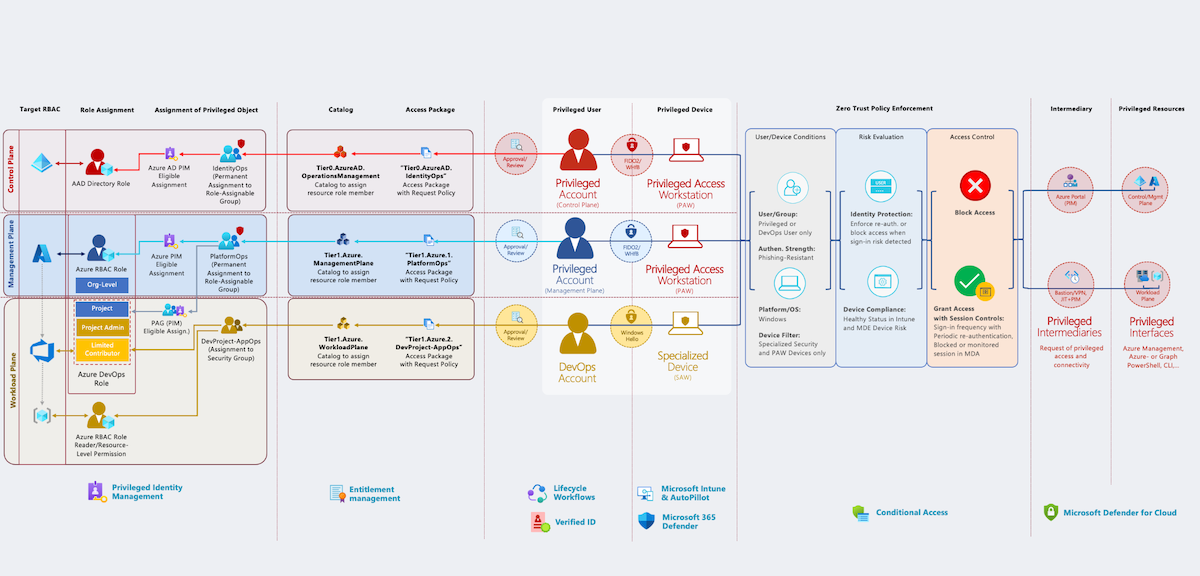
For eligible Microsoft Entra ID P2 environments, Privileged Identity Management (PIM) can provide just-in-time access to certain privileged roles. Instead of holding an elevated role permanently, an administrator can activate it for a limited period, subject to configured requirements such as approval or multifactor authentication.
Strengthen sign-in security
Passwords alone are not enough to protect accounts. Enable multifactor authentication (MFA) and require it for users, with particular attention to administrators and accounts that can access sensitive information. Where possible, encourage stronger, phishing-resistant authentication methods, such as passkeys or security keys, based on your organisation’s requirements and available licences.
Use Conditional Access policies to make access decisions based on signals such as the user, application, device, location and sign-in risk. For example, a policy might require MFA for access to business applications or block access from a device that does not meet defined security requirements.
Plan policies carefully. Start with a small pilot group, test the effect on legitimate users and maintain emergency access accounts that are securely protected and excluded from policies that could accidentally lock out all administrators. Monitor sign-ins after deploying changes.
Manage applications and service identities
Applications and automated processes also need identities. In Microsoft Entra ID, app registrations and service principals support authentication between applications and services. These identities should be treated with the same care as user accounts.
- Grant applications only the permissions they require.
- Review consent requests and avoid granting broad permissions without a clear business need.
- Prefer managed identities or certificate-based authentication where supported, rather than long-lived client secrets.
- Track credential expiry dates and replace credentials securely before they expire.
- Remove registrations and service principals that are no longer used.
Control the identity lifecycle
Access should change when a person’s circumstances change. Establish a consistent joiner, mover and leaver process so that accounts, group memberships, application access and administrative roles are updated promptly.
Automate provisioning and deprovisioning where practical, particularly for commonly used applications. For external collaborators, use guest access deliberately: assign an owner, limit access to what is required and set a process for reviewing or removing the account when collaboration ends.
Review access regularly
Permissions can accumulate over time, so access reviews are an important part of ongoing identity management. Review group membership, application assignments, guest accounts and privileged roles on a defined schedule. Pay particular attention to access that is sensitive, temporary or no longer linked to a current business need.
Document who is responsible for each review and what happens when access is no longer approved. Microsoft Entra ID offers access review capabilities in eligible plans; organisations can also use established internal review processes to verify that access remains appropriate.
Monitor activity and respond to risk
Sign-in logs and audit logs provide information about authentication activity and changes made in the directory. Use them to investigate unusual sign-ins, unexpected role assignments, changes to security settings and suspicious application consent.
Connect relevant logs to your monitoring or security information and event management (SIEM) platform where appropriate. Define who will investigate alerts, how incidents will be escalated and what steps will be taken to contain a compromised account. Regularly test these procedures rather than relying on alerts alone.
Build a practical management routine
Identity and access management is an ongoing process, not a one-off configuration exercise. A practical routine should include:
- Reviewing privileged roles and high-risk group memberships.
- Checking for inactive accounts, unused applications and expired credentials.
- Testing MFA and Conditional Access policies with representative users.
- Reviewing guest access and application permissions.
- Monitoring sign-in and audit logs, then acting on relevant alerts.
- Keeping procedures and ownership information current.
Conclusion
Effective identity and access management in Azure Active Directory, now Microsoft Entra ID, combines clear account lifecycle processes with carefully assigned permissions, strong authentication and regular monitoring. By applying least privilege, reviewing access and planning policy changes carefully, organisations can make access easier to manage while reducing the risk of unauthorised use.
8 Tips for Managing Identity and Access in Azure Active Directory
- Enable multi-factor authentication for all users.
- Use Conditional Access to enforce sign-in rules.
- Grant only the access each role needs.
- Use privileged identity management for admin roles.
- Review user access regularly and remove stale accounts.
- Use groups to assign access consistently.
- Require strong authentication for administrator accounts.
- Monitor sign-in logs for unusual activity.
Enable multi-factor authentication for all users.
Enable multi-factor authentication (MFA) for all users to add an extra layer of protection to your Microsoft Entra ID (formerly Azure Active Directory) environment. MFA requires people to verify their identity using an additional method, such as an authenticator app, passkey or security key, making stolen passwords less likely to result in unauthorised access. Apply the requirement consistently across users and applications, prioritise phishing-resistant methods where practical, and test your policies before enforcing them to avoid disrupting legitimate sign-ins.
Use Conditional Access to enforce sign-in rules.
Use Conditional Access in Microsoft Entra ID (formerly Azure Active Directory) to apply sign-in rules based on factors such as the user, device, location, application and sign-in risk. For example, you can require multifactor authentication when someone accesses sensitive applications, or block sign-ins from devices that do not meet your security requirements. Start by testing policies with a small group, and keep emergency access arrangements in place to prevent administrators being locked out.
Grant only the access each role needs.
Grant each user or group only the access required to carry out their role. In Microsoft Entra ID (formerly Azure Active Directory), assign the most specific permissions available and avoid giving broad administrative rights unless they are genuinely necessary. Review access regularly, particularly when someone changes role or leaves the organisation, and remove permissions that are no longer needed. This least-privilege approach helps limit the impact of mistakes or compromised accounts.
Use privileged identity management for admin roles.
Use Privileged Identity Management (PIM) to limit permanent access to administrative roles in Microsoft Entra ID (formerly Azure Active Directory). Instead of granting elevated permissions indefinitely, make eligible users activate a role only when they need it and for a set period. You can also require extra safeguards, such as multifactor authentication, approval or a reason for activation. This just-in-time approach reduces the number of standing privileged accounts and helps limit the impact of compromised credentials or accidental changes. Regularly review role assignments and PIM settings to ensure they still reflect your organisation’s needs.
Review user access regularly and remove stale accounts.
Review user access regularly to ensure permissions still match each person’s role and responsibilities. Remove or disable stale accounts, such as those belonging to former employees or unused guest users, and revoke any access they no longer need. This reduces the number of potential entry points for attackers and helps keep your Microsoft Entra ID environment secure and well managed.
Use groups to assign access consistently.
Use groups to assign access consistently across Microsoft Entra ID (formerly Azure Active Directory). Rather than granting permissions to users one by one, add them to groups based on their role, team or project, then assign the appropriate access to each group. This makes it easier to manage permissions when people join, change roles or leave, and helps reduce inconsistent or excessive access. Give groups clear names, assign an owner and review membership regularly—particularly for groups with access to sensitive resources.
Require strong authentication for administrator accounts.
Require strong authentication for administrator accounts to help protect your organisation’s most powerful identities. Enforce multifactor authentication, and where possible use phishing-resistant methods such as passkeys or security keys. Keep administrative accounts separate from everyday user accounts, grant only the roles each administrator needs, and review access regularly. These measures can make it harder for attackers to gain control, even if a password is stolen.
Monitor sign-in logs for unusual activity.
Monitor Microsoft Entra ID sign-in logs regularly to spot unusual activity, such as repeated failed sign-in attempts, access from unexpected locations or unfamiliar devices, and sign-ins at unusual times. Investigating these patterns promptly can help identify compromised accounts or misconfigured access before they lead to a security incident. Where possible, configure alerts for suspicious events and ensure someone is responsible for reviewing and responding to them.