
Microsoft Defender Firewall: What It Does and How to Use It
Microsoft Defender Firewall is a security feature built into Windows that helps control network traffic to and from a computer. It can block unwanted connections while allowing trusted apps and services to communicate. For most people, it provides an important layer of protection that should remain switched on.
What is Microsoft Defender Firewall?
A firewall applies rules to network connections. Microsoft Defender Firewall checks incoming and outgoing traffic against those rules, then allows or blocks it. By default, Windows generally blocks unsolicited incoming connections and allows outgoing connections, unless a rule or organisation policy says otherwise.
A firewall is not the same as antivirus software. Antivirus protection looks for malicious files and activity on a device, while a firewall controls network connections. They work together as parts of a broader security approach. A firewall cannot, on its own, prevent every online threat or make an unsafe download harmless.
Network profiles: Domain, Private and Public
Windows uses different firewall profiles depending on the type of network a device is connected to:
- Domain: Used when a computer is connected to an organisation’s managed domain network. Settings may be controlled by an IT administrator.
- Private: Intended for networks you trust, such as a home network. Some discovery and sharing features may be available, depending on your settings.
- Public: Intended for networks you do not trust, such as public Wi-Fi in a café or hotel. Windows applies a more restrictive profile to reduce the chance of other devices connecting to your computer.
Choose the profile that reflects the network’s trustworthiness, rather than its name. A network called “Home” is not automatically safe. When in doubt, use the Public profile.
How to check your firewall settings
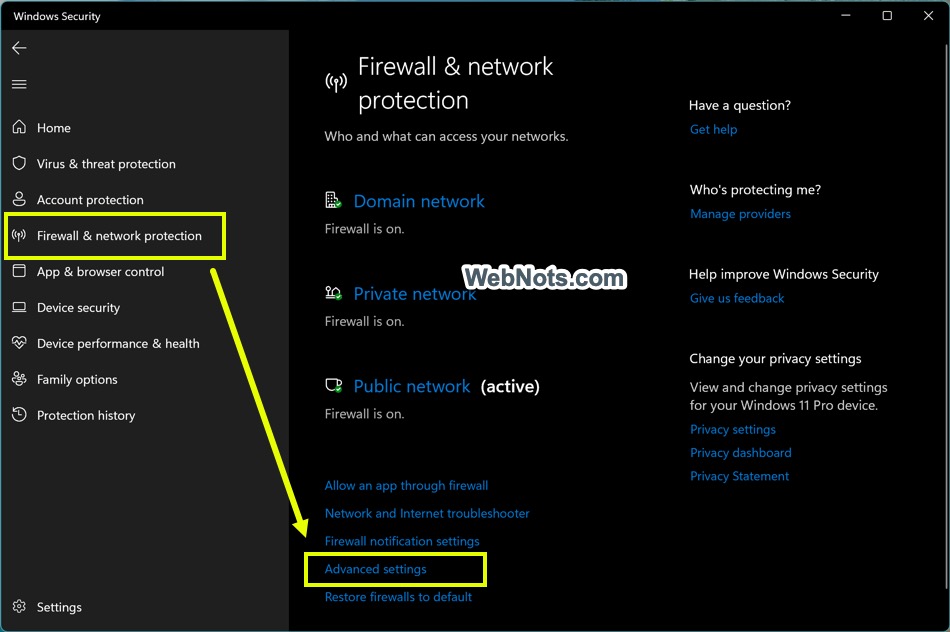
In Windows 11, open Settings, select Privacy & security, then Windows Security. Choose Firewall & network protection to view the active network profile and firewall status. The labels may vary slightly between Windows versions.
This page also provides links to allow an app through the firewall and to open the more detailed firewall settings. On managed work or school devices, some options may be unavailable because they are set by an administrator.
Allowing an app through the firewall
If a trusted app cannot connect to a network service, you may be able to create an exception. In Firewall & network protection, select Allow an app through firewall. Review the list, and only allow apps you recognise and trust. Where possible, allow access only on the network profiles the app needs.
Allowing an app through the firewall creates a specific exception; it does not mean the app is safe in every respect. Avoid adding exceptions for unfamiliar software, and remove exceptions that are no longer required. If a work application is blocked, contact your organisation’s IT support before changing settings.
Advanced firewall rules
For more detailed control, Windows includes Windows Defender Firewall with Advanced Security. You can open it by searching the Start menu for Windows Defender Firewall with Advanced Security or by running wf.msc.
Advanced Security lets an administrator create inbound and outbound rules based on details such as an application, port, protocol or network profile. This is useful for managing servers, business networks and specialist software, but changing rules without understanding their effect can interrupt services or expose a device to unwanted connections.
Should you turn Microsoft Defender Firewall off?
In general, no. Turning off the firewall can leave your computer more exposed to unwanted network connections. If a particular app or device is not working, investigate the relevant rule or network configuration rather than disabling protection altogether.
Some organisations use centrally managed firewall policies or other security products. If Windows reports that settings are managed by another provider, follow your organisation’s guidance. Do not run overlapping firewall products unless they are designed to work together.
Checking firewall status with PowerShell
On a personal computer, you can check the status of the three profiles in PowerShell with:
Get-NetFirewallProfile | Select-Object Name, EnabledTo enable the firewall for all profiles, an administrator can run:
Set-NetFirewallProfile -Profile Domain,Private,Public -Enabled TrueUse administrative commands only when you understand the change and have permission to make it. On a managed device, your organisation’s policies may override local settings.
Logging and troubleshooting
If you need to investigate blocked traffic, the Advanced Security console includes monitoring and logging options. Logs can help identify whether a connection is being blocked, but interpreting them may require technical knowledge. For common connection problems, first check that Windows is using the correct network profile and that the app is allowed where appropriate.
If the issue continues, check the app’s own network requirements and consult its support documentation. On a work or school device, ask your IT team before changing firewall rules.
Key points
- Microsoft Defender Firewall helps control network connections; it does not replace antivirus protection.
- Keep the firewall switched on and use the Public profile for networks you do not trust.
- Allow only trusted apps, and grant access only on the profiles they need.
- Use advanced rules carefully, particularly on business or shared devices.
For most Windows users, the best approach is straightforward: leave Microsoft Defender Firewall enabled, choose network profiles thoughtfully and make exceptions only when there is a clear need.
5 Key Benefits of Microsoft Defender Firewall
- Built into Windows at no extra cost
- Helps block unwanted network connections
- Offers separate settings for network types
- Works alongside Microsoft Defender Antivirus
- Allows rules for trusted apps
Key Limitations of Microsoft Defender Firewall
- Limited advanced features for experienced users.
- Can block legitimate apps or services.
- Firewall rules can be complex to manage.
- Does not replace antivirus or other security measures.
Built into Windows at no extra cost
One of the main advantages of Microsoft Defender Firewall is that it is built into Windows at no extra cost. There is no separate firewall software to buy or install, and it works alongside Windows security features to help manage network connections. This makes it a convenient, budget-friendly option for individuals and organisations using Windows.
Helps block unwanted network connections
Microsoft Defender Firewall helps block unwanted network connections by checking incoming and outgoing traffic against its security rules. It can prevent unauthorised devices or services from connecting to your computer, while still allowing trusted apps to communicate when needed. This provides a useful layer of protection, particularly when you’re connected to a public or unfamiliar network.
Offers separate settings for network types
Microsoft Defender Firewall offers separate settings for domain, private and public networks, so protection can match the level of trust in each connection. For example, you can allow certain sharing features on a trusted home network while keeping tighter restrictions on public Wi-Fi. This flexibility helps balance convenience and security without applying the same rules everywhere.
Works alongside Microsoft Defender Antivirus
Microsoft Defender Firewall works alongside Microsoft Defender Antivirus to provide complementary layers of protection. Antivirus helps detect and block malicious files and activity on your device, while the firewall controls network connections to and from it. Together, they help protect Windows from different types of threats, making them a useful part of a broader security strategy.
Allows rules for trusted apps
Microsoft Defender Firewall lets you create rules that allow trusted apps to communicate over your network. This can help legitimate software work as expected while the firewall continues to block other unwanted connections. You can tailor access to the network profiles an app needs, such as Private or Domain, rather than allowing it everywhere. For greater security, only create exceptions for apps you recognise and trust, and remove rules you no longer need.
Limited advanced features for experienced users.
For experienced users, Microsoft Defender Firewall may feel limited compared with specialist firewall solutions. Windows includes advanced rules for managing network traffic, but it offers less built-in visibility, customisation and centralised control than some third-party tools. Users who need detailed traffic analysis, complex rule management or extensive reporting may find they need additional software or dedicated network security tools.
Can block legitimate apps or services.
Microsoft Defender Firewall can sometimes block legitimate apps or services if their network traffic does not match the firewall’s rules. This may prevent software from connecting to the internet, sharing files or communicating with other devices. If this happens, check that the app is trusted and allow it through the firewall only on the network profiles it needs. Avoid switching the firewall off completely, as this can leave your device less protected.
Firewall rules can be complex to manage.
Managing Microsoft Defender Firewall rules can be complex, particularly when an application needs specific access or a network has several devices and services. Rules may depend on factors such as the app, port, connection type and network profile, so changing the wrong setting can block legitimate traffic or leave a device less protected. This can make troubleshooting time-consuming, and advanced configurations may require help from an IT professional.
Does not replace antivirus or other security measures.
Microsoft Defender Firewall helps control network traffic, but it does not replace antivirus software or other security measures. It cannot, by itself, detect and remove every virus, block phishing attempts or protect you from unsafe downloads. For stronger protection, keep your antivirus and Windows updates current, use strong unique passwords and be cautious with links, attachments and unfamiliar websites.